



On this page
RDP connection error 0x204 usually means that the client cannot complete a connection to the remote Windows host. Test the address and TCP port first, then verify that the host is powered on, Remote Desktop is enabled, its listener and firewall rules work, and the account is allowed to sign in.
This guide follows that order on Windows, macOS and Linux so that each result tells you what to check next instead of changing several settings at once.
Before You Change Any Remote Desktop Settings
Record the Exact Address, Port and Error Message
Copy the hostname or IP address supplied for the host, the configured RDP port, the username format and the complete error message. Do not assume the port is 3389 if the server administrator supplied another port; Remote Desktop normally listens on TCP port 3389 unless it has been changed.
Keep a Host-Side Access Method Available
Before changing host settings, keep console, hypervisor, local keyboard or administrator-assisted access available. A firewall, listener or authentication change can otherwise leave you unable to test or reverse the change.
Know When to Stop and Contact the Server Administrator
Stop after you establish that the host is off, its address is unknown, or a network policy blocks the port and you do not administer those systems. Use the related connection guidance on our digirdp knowledge base before making host-side changes you cannot verify.
Step 1: Test the Hostname and IP Address
Connect once using the supplied hostname and once using the supplied IP address, using the same username and port for both attempts. This separates name resolution from the TCP path and the Remote Desktop service.
When an IP Connection Works but the Hostname Fails
If the IP address works while the hostname fails, the likely issue is DNS or name resolution rather than RDP itself. Correct the hostname record or use the current address supplied by the administrator.
Using a Custom Port in the Connection Address
For a non-default listener, enter the target as hostname:port or IP-address:port in the client’s computer or PC field. Test that same port in every later step.
Step 2: Confirm the Remote Windows Host Is Available
Verify That the Host Is Powered On and Awake
Confirm through the host console or administrator that the Windows machine is powered on and not asleep or hibernating. Remote Desktop cannot connect to a computer in those states.
Confirm the Address Has Not Changed
Compare the hostname and IP address in your client with the connection details currently assigned to the host. If the address changed, update the saved client entry and repeat the port test before changing Windows settings.
Step 3: Test RDP Port Reachability from Your Client
Test the exact hostname or IP address and the configured RDP port from the device running the client. A failed TCP test points to the network path, address or firewall; a successful test moves the investigation to the Windows host and sign-in stage.
Windows PowerShell: Test-NetConnection
On the Windows client, open PowerShell and replace the example target and port with the values for your host. Microsoft documents Test-NetConnection for this RDP connectivity check.
Test-NetConnection -ComputerName 203.0.113.10 -Port 3389 -InformationLevel Detailed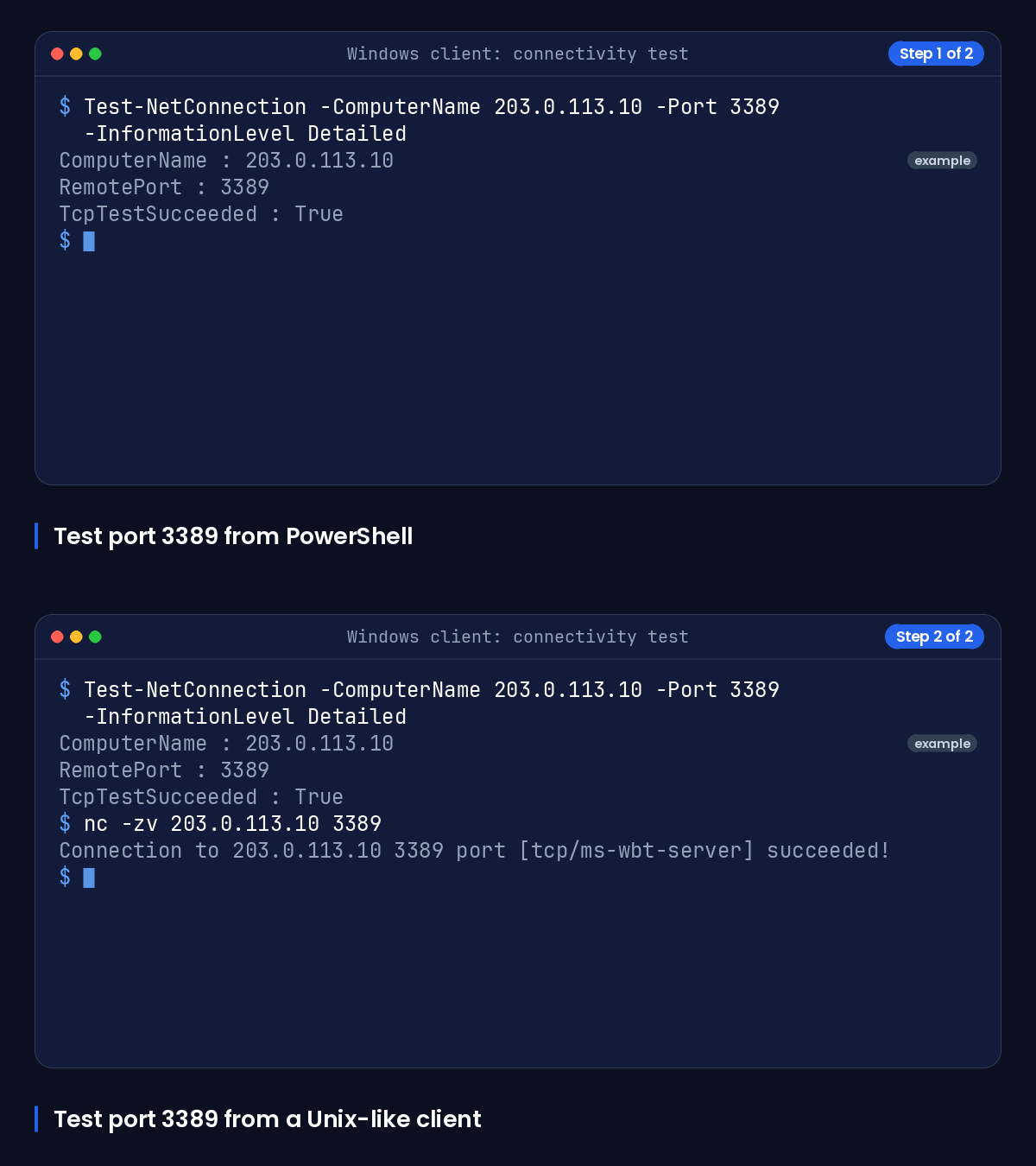
Read the TcpTestSucceeded field. A value of True means the TCP test reached the target port; False means that connectivity must be investigated before credentials or client preferences.
macOS and Linux: Test the Target TCP Port
On macOS or Linux, open Terminal and run a TCP probe with the target address and configured port.
nc -zv 203.0.113.10 3389A successful connection or open-port message means the TCP path is available. A timeout, refusal or unreachable result means the port test did not establish the required connection; check the address, host state, firewall and intervening network policy.
What TCP Success and Failure Tell You
If the TCP test succeeds but error 0x204 continues, continue with the host listener, firewall and account checks. If it fails for both hostname and IP address, do not spend time changing saved credentials until the network path or host-side service is confirmed.
Step 4: Check Remote Desktop, the Listener and Firewall on the Host
Perform these checks from the Windows host console or through an administrator with host access. Enable Remote Desktop only on trusted networks.
Enable Remote Desktop in Windows Settings
On the host, open Settings, then System, then Remote Desktop, and turn on Remote Desktop if it is disabled. Remote connections must be enabled on the target before a client can create an RDP session.
Inspect the RDP Listener and Configured Port
Open an elevated PowerShell window on the host and inspect the configured PortNumber under the RDP-TCP listener key.
Get-ItemProperty -Path 'HKLM:\SYSTEM\CurrentControlSet\Control\Terminal Server\WinStations\RDP-Tcp' -Name PortNumber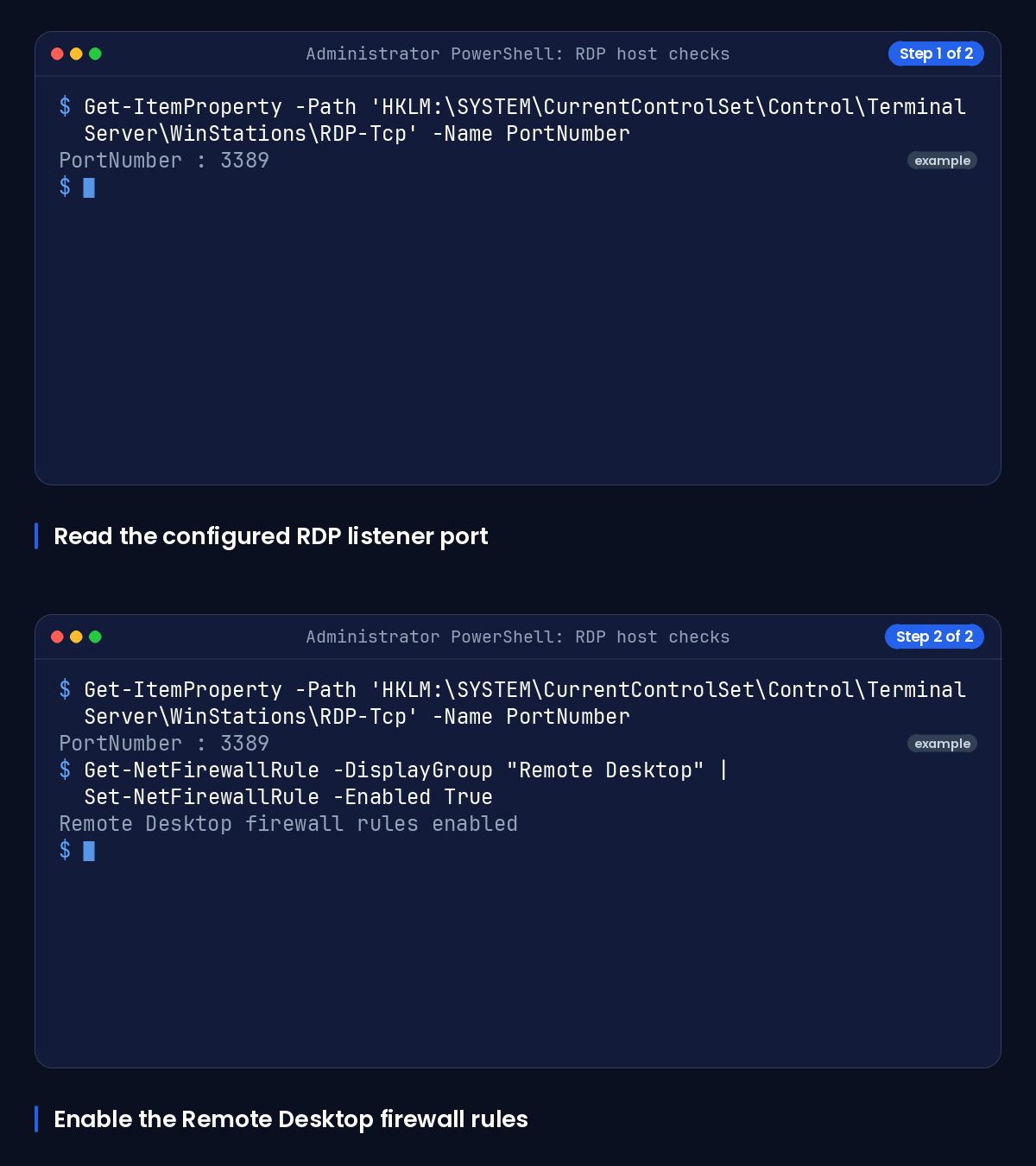
Interpret the displayed value as the configured listener port and use that value in the client address and TCP test. Microsoft’s RDP troubleshooting guidance uses the Terminal Server WinStations registry area to inspect this setting and checks that the listener is operating on the expected port.
Enable the Applicable Remote Desktop Firewall Rules
Still in an elevated PowerShell window, enable the Windows Firewall rules in the Remote Desktop display group.
Get-NetFirewallRule -DisplayGroup "Remote Desktop" | Set-NetFirewallRule -Enabled TrueAlso confirm that the Remote Desktop User Mode TCP-In rule is enabled for the network profile in use. If you need a managed remote Windows environment rather than repair access to this host, review our windows rdp plans.
Step 5: Resolve Credentials, Permissions and NLA Issues
Only move to account checks after the address is correct and the TCP test reaches the expected port. A rejected account can look similar to a connection issue, but it occurs later in the connection process.
Use the Correct Account Format
Use the username format supplied by the host administrator. For a local account, this is commonly HOSTNAME\username or .\username; do not substitute an email address unless that is the account configured on the host.
Check Remote Desktop Users and Logon Rights
Confirm that the account is a member of an allowed group, such as Remote Desktop Users or Administrators, and has the Allow log on through Remote Desktop Services right. An account without the required right or permitted group membership can be rejected.
Review Network Level Authentication Compatibility
Network Level Authentication requires credentials before the RDP session is established. When the port test succeeds but sign-in fails, verify account permissions and that the client can meet the host’s NLA requirement with the server administrator.
Step 6: Use the Right Client Settings on Windows, macOS and Linux
Enter the same verified host, port and account details on every client platform. Remove or edit a saved entry if it contains an old hostname, IP address, port or username.
Windows App and Remote Desktop Connection
In Windows App or Remote Desktop Connection, add or edit the PC entry, enter the hostname or IP address, and append :port when the host uses a non-default port. Microsoft documents Remote Desktop clients for Windows and macOS, with supported features varying by platform.
macOS Connection Details and Saved Entries
In the macOS Remote Desktop client, edit the saved PC entry and confirm the PC name or IP address, port and user account match the tested values. Delete and recreate only the saved entry if it continues to retain an incorrect address or account selection.
Linux xfreerdp Target and Port Syntax
FreeRDP documents xfreerdp as an X11 RDP client and supports target syntax through the /v: option. Run this command from a Linux terminal after replacing the target, port and username.
xfreerdp /v:203.0.113.10:3389 /u:username /clipboardIf the command cannot establish a connection, return to the hostname/IP and TCP-port tests. FreeRDP lists missing network connectivity, no RDP server, firewall blocking and incompatible cipher support among possible connection causes. For another client configuration walkthrough, see Mac, iPhone, and Android RDP.
Troubleshooting Results Matrix
The table below maps each observed result to the next check.
| Observed result | Likely layer | Test interpretation | Precise next action |
|---|---|---|---|
| Hostname fails, IP address works | Name resolution | The RDP path can work when addressed directly. | Correct the DNS or hostname record, or use the current IP address supplied by the administrator. |
| Both hostname and IP address fail | Host availability or routing | The failure is not limited to name resolution. | Confirm the host is powered on, validate the assigned address, then run the TCP port test. |
| TCP port test fails | Network path, firewall or listener | The client could not establish TCP connectivity to the tested port. | Check the configured port, inbound firewall rule, listener and any network policy between client and host. |
| TCP port test succeeds but 0x204 continues | Host RDP configuration | The TCP path is available, so investigate the target configuration. | Confirm Remote Desktop is enabled, inspect the listener port and review firewall rules on the host. |
| Authentication rejection | Account permissions or NLA | The connection reached the authentication stage. | Verify username format, Remote Desktop Users or Administrators membership, logon rights and NLA compatibility. |
| Non-default port supplied | Client targeting | A default-port test does not test the configured listener. | Use hostname:port or IP-address:port in the client and test that exact port. |
When to Contact the Network or Server Administrator
Contact the network or server administrator when the host is off, you cannot verify the current address, the port test fails outside your administrative boundary, or a listener, firewall or account-policy change requires elevated access. Include the tested target, port, time, client platform and the exact TCP result.
Choose a Windows RDP Plan When You Need a New Host
Match Access Requirements to an RDP Plan
If you need replacement remote Windows access rather than a fix for an existing host, the table below helps you compare the listed DigiRDP RDP options.
| Requirement | Plan | vCPU | RAM | Storage | Location | Setup time | Price (USD, live) |
|---|---|---|---|---|---|---|---|
| Browsing, email and light apps | USA ADMIN RDP #2 | 2 vCPU | 2 GB | 40Gb SSD/NVMe | New York/Dallas | Instant Setup or Up to 12hrs | $9.59/mo, billed annually ($115.10) |
| Several apps and multitasking | USA ADMIN RDP #4 | 3 vCPU | 4 GB | 80 GB SSD | New York/Dallas | Instant Setup or Up to 12hrs | $14.39/mo, billed annually ($172.70) |
| Heavy multitasking and developer tools | USA ADMIN RDP #6 | 6 vCPU | 8 GB | 120Gb SSD/NVMe | New York/Dallas | Instant Setup or Up to 12hrs | $27.19/mo, billed annually ($326.30) |
| Rendering, encoding or many sessions | USA ADMIN RDP #8 | 6 vCPU | 16 GB | 200Gb SSD/NVMe | New York/Dallas | Instant Setup or Up to 12hrs | $47.99/mo, billed annually ($575.90) |
Check Available Locations and Plan Details
Inspect current options on Buy RDP, consider Private RDP plans guide if you need a different access arrangement, and check DigiRDP data centre locations guide before selecting a location.
Frequently Asked Questions
What Does Error Code 0x204 Mean in a Windows App?
Error 0x204 indicates that the Remote Desktop client did not complete a connection to the remote host. Start with the hostname or IP address and TCP port test, then check the host listener, firewall and account permissions.
What Does Error Code 0x204 Mean When Using Mac Remote Desktop?
On macOS, error 0x204 should be approached in the same order: verify the saved PC name or IP address, test the target port from Terminal, then confirm Remote Desktop and the firewall on the Windows host. A saved entry with an old address or port can cause the same failure.
Can I Fix RDP Error 0x204 by Using the IP Address Instead of the Hostname?
Using the IP address is a useful diagnostic test. If the IP connection works and the hostname does not, the likely cause is DNS or name resolution; correct the hostname record rather than treating it as a general RDP failure.
How Do I Check Whether Port 3389 Is Reachable for RDP?
On Windows, run Test-NetConnection with the target and port 3389, then read TcpTestSucceeded. On macOS or Linux, use a TCP probe such as nc -zv against the exact target and port. If the host uses another configured port, test that port instead.
How Do I Troubleshoot RDP Error 0x204 on Linux?
First test the target’s TCP port from the Linux device. Then use xfreerdp with /v:host:port and the correct username, and return to the host-side listener and firewall checks if it cannot connect.
Why Is RDP Not Connecting?
Common layers are an incorrect hostname or IP address, an unavailable host, a blocked or incorrect TCP port, disabled Remote Desktop, a listener or firewall problem, or an account and NLA restriction. Testing in that order identifies the earliest failed layer.
Sources
- Remote Desktop Can't Connect to the Remote Computer - Windows Server | Microsoft Learn — learn.microsoft.com
- Change Remote Desktop listening port on Windows and Windows Server | Microsoft Learn — learn.microsoft.com
- Remote Desktop clients FAQ | Microsoft Learn — learn.microsoft.com
- Enable Remote Desktop on your PC | Microsoft Learn — learn.microsoft.com
- General Remote Desktop connection troubleshooting - Windows Server | Microsoft Learn — learn.microsoft.com
- The System Administrator Has Restricted the Types of Logon - Windows Server | Microsoft Learn — learn.microsoft.com
- Compare Remote Desktop client features across platforms and devices - Remote Desktop client | Microsoft Learn — learn.microsoft.com
- FreeRDP/client/X11/man/xfreerdp.1.in at master · FreeRDP/FreeRDP · GitHub — github.com
Ready to deploy your own server?
Full admin access, DDoS protection and instant setup — pick a plan sized to your workload.
Explore Windows RDP plans