




On this page
You can run Claude Code on a Linux VPS and keep its terminal session active in tmux after you disconnect and close your laptop. Use a non-root account, SSH keys, a restrictive firewall and server-side authentication so the repository and credentials remain on the VPS; choose a Windows RDP desktop only for a GUI-led workflow that requires it.
This guide covers choosing a host, preparing Ubuntu, installing the CLI, authenticating without copying a project locally, keeping work persistent, scheduling bounded jobs, reconnecting and fault finding.
Choose a VPS or Windows RDP Workflow
Minimum Platform and Resource Requirements
Claude Code supports Ubuntu 20.04 or later and requires 4GB or more RAM, Node.js 18 or later, an internet connection, and Bash, Zsh or Fish. Treat 4GB RAM as the documented baseline rather than a sizing rule: leave headroom for your repository, build tools, test suite and concurrent processes.
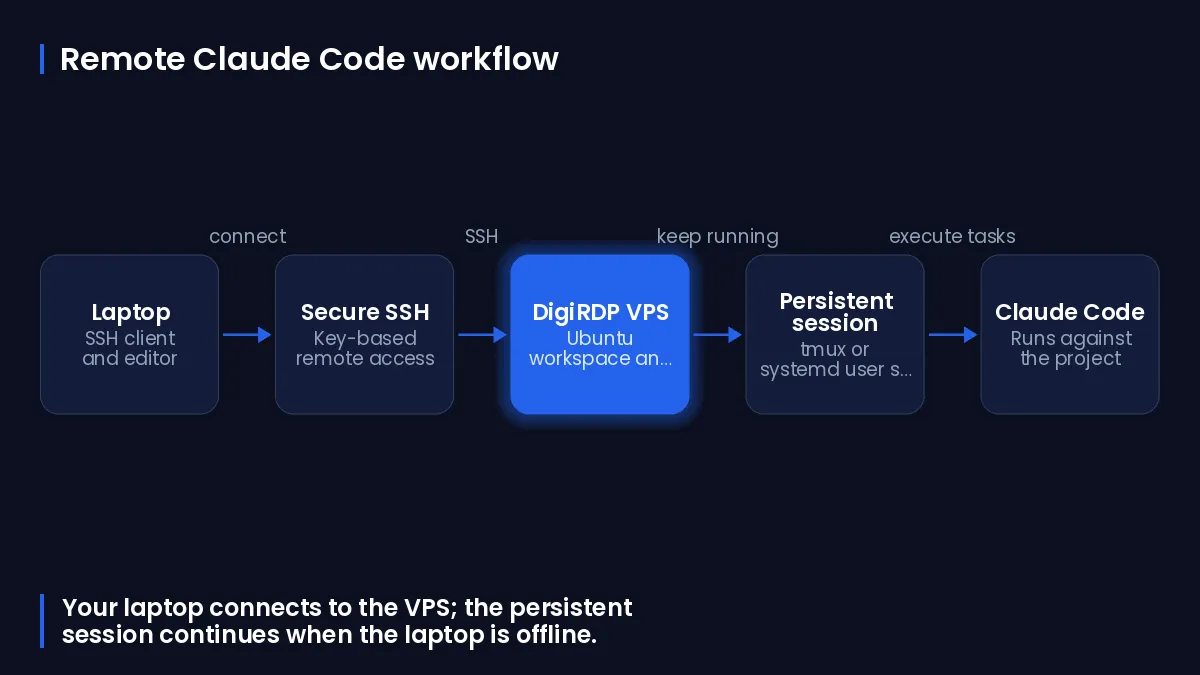
The table below matches Claude Code and GUI-led remote-work requirements to available DigiRDP VPS plan families; confirm current specifications on the linked plan page before ordering.
| Requirement | Plan | vCPU | RAM | Storage | Location | Setup time | Price (USD, live) |
|---|---|---|---|---|---|---|---|
| Single small project or service | Cloud VPS Host Pro | 3 vCPU | 4 GB | 40 GB disk (RAID 50) | USA- New York | Instant Setup or Up to 12hrs | $9.00/mo |
| Builds, tests and a few containers | Cloud VPS Host Deluxe | 4 vCPU | 6 GB | 60 GB disk (RAID 50) | USA- New York | Instant Setup or Up to 12hrs | $14.99/mo |
| Larger repos, databases or several agents | UK Cloud VPS #8 | 4 vCPU | 16 GB | 200 GB NVMe | UK | Instant Setup or Up to 12hrs | $44.00/mo |
| Heavy builds, CI or many concurrent workloads | UK Cloud VPS #9 | 4 vCPU | 32 GB | 250 GB NVMe | UK | Instant Setup or Up to 12hrs | $75.00/mo |
You can compare the current Linux hosting choices on Linux VPS Hosting guide. Provisioning for the listed VPS plans is described as Instant Setup or Up to 12hrs.
When Linux VPS Is the Better Fit
Choose Linux over SSH when the work is terminal-led: editing a server-side repository, running tests, using Git, or leaving an interactive session attached to tmux. Keep the code under a dedicated account rather than placing it in the administrator account.
Select a region appropriate for your team and workflow using DigiRDP data centre locations. Your VPS also needs outbound internet access because Claude Code uses the network for authentication and AI processing.
When Windows RDP Is the Better Fit
Choose a Windows RDP desktop when your approved workflow specifically needs a persistent graphical desktop. Review the current desktop options on Windows RDP plans; keep project files and credentials inside that remote desktop rather than synchronising them to an unmanaged local machine.
Prepare the VPS and Secure Remote Access
Complete access controls before cloning a repository or creating credentials. Keep your first SSH session open until you have tested a second login, so a configuration mistake does not remove your only working route into the VPS.
Record the Server Address and Create an SSH Key
On your own computer, create a dedicated Ed25519 key pair and copy its public key to the VPS using the server address supplied with the service. Replace the example account name and address before running these commands.
ssh-keygen -t ed25519 -f ~/.ssh/claude-vps -C "claude-vps"
ssh-copy-id -i ~/.ssh/claude-vps.pub root@SERVER_IP
Connect with that key, then record the host key fingerprint when SSH prompts you to verify it. If you need additional account-access guidance, see DigiRDP knowledge base.
Create a Restricted Working Account
From the initial administrative session, install the SSH server if it is absent, create a dedicated account named claudeops, and create its workspace directory.
sudo apt update
sudo apt install openssh-server tmux ufw
sudo adduser --disabled-password --gecos "" claudeops
sudo install -d -o claudeops -g claudeops -m 700 /home/claudeops/work
Install your public key for that account and make sure neither group nor other users can write the authorised-keys file.
sudo install -d -o claudeops -g claudeops -m 700 /home/claudeops/.ssh
sudo cp /root/.ssh/authorized_keys /home/claudeops/.ssh/authorized_keys
sudo chown claudeops:claudeops /home/claudeops/.ssh/authorized_keys
sudo chmod 600 /home/claudeops/.ssh/authorized_keys
Configure SSH and UFW Without Locking Yourself Out
First allow SSH through UFW, check the rule, then enable the firewall. Do this while the original session remains connected and test a second login as claudeops.
sudo ufw allow 22
sudo ufw status
sudo ufw enable
ssh -i ~/.ssh/claude-vps claudeops@SERVER_IP
Before restarting SSH after any future configuration edit, validate the configuration. Ubuntu recommends testing with sshd -t before applying changes.
sudo sshd -t
sudo systemctl restart ssh.service
Install Node.js and Claude Code on Ubuntu
Install Node.js 18 or later using your organisation-approved Node.js package source for the Ubuntu release on the VPS. Do not use the root account for the Claude Code installation; Anthropic advises against a global npm installation with sudo because it can create permission problems and security risks.
Install Node.js Without Global sudo
Switch to the working account and verify the installed runtime before proceeding. If the displayed major version is below 18, stop and update Node.js through the approved package source before installing the CLI.
sudo -iu claudeops
node --version
npm --version
Install and Verify the Claude Code CLI
Install the documented package in the working account, then use the documented health check to inspect the installation type and version.
npm install -g @anthropic-ai/claude-code
claude doctor
The documented npm command is npm install -g @anthropic-ai/claude-code. If you have not provisioned a Linux host yet, compare Linux-specific options at DigiRDP for Developers.
Create a Server-Side Workspace
Create the project directory under the restricted account, then clone or otherwise obtain the repository directly on the VPS using your approved source-control access method. Do not put API keys, access tokens or private keys in the repository.
mkdir -p ~/work/project
cd ~/work/project
pwd
ls -la
Authenticate Claude Code on a Headless Server
Authentication is separate from SSH access. Claude Code supports Anthropic Console OAuth, a Claude Pro or Max subscription, and enterprise integrations such as Amazon Bedrock and Google Vertex AI; use the method approved for the account and organisation.
Choose the Authentication Method
For an interactive subscription or Console path, run the CLI inside an SSH or tmux session and follow its authentication flow. For an API-key or approved gateway path, use server-side environment management with restricted permissions; an ANTHROPIC_API_KEY can cause API usage charges.
Authenticate Without a Local Project Copy
From the VPS workspace, start Claude Code and complete the approved login process from that remote session. The project directory stays on the VPS; avoid copying the repository to a laptop merely to authenticate.
cd ~/work/project
claude
Do not paste a secret into shell history or commit it to a configuration file. Store secrets in an approved secret manager or a root-owned deployment mechanism, and expose only the minimum environment required to the working account.
Use a Corporate HTTP or HTTPS Proxy Safely
Claude Code supports standard HTTPS_PROXY and HTTP_PROXY environment variables. It does not support NO_PROXY or SOCKS proxies; a restricted proxy or firewall needs access to api.anthropic.com, statsig.anthropic.com and sentry.io.
If your proxy uses a custom certificate authority, configure the certificate bundle through SSL_CERT_FILE and NODE_EXTRA_CA_CERTS in your approved secret-management path. Do not hardcode proxy passwords in scripts.
Keep Claude Code Running After SSH Disconnects
Use tmux for interactive work that you may return to, and a user service only for a bounded non-interactive task with a known prompt, working directory and log location. A detached tmux session continues running in the background and can be reattached from another terminal.
Create, Detach and Reattach a tmux Session
Create a named session under the working account, change into the repository and start Claude Code.
tmux new-session -s claude-project
cd ~/work/project
claude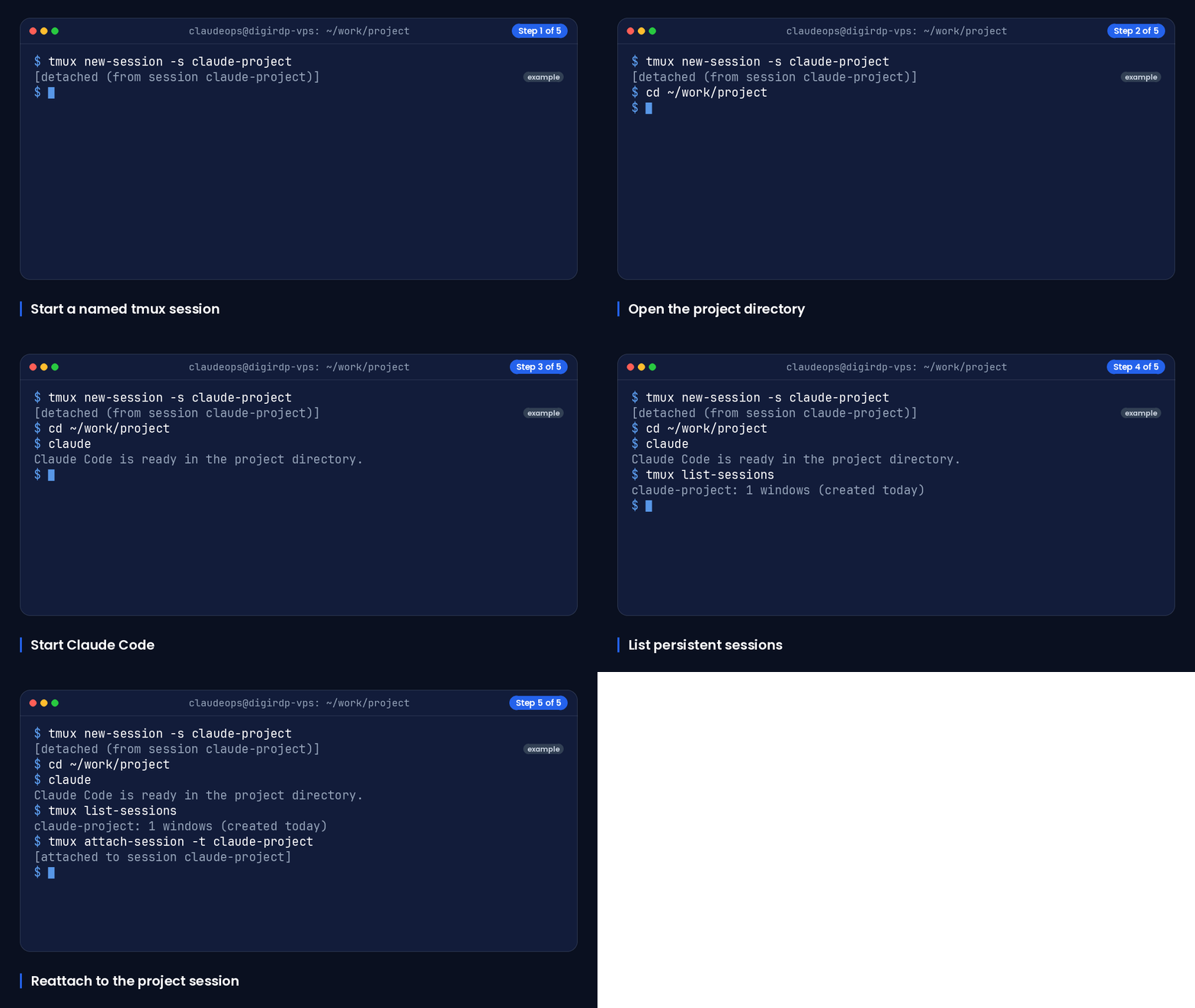
To detach, press Ctrl-b followed by d. From a later SSH connection, list sessions and reattach the named one.
tmux list-sessions
tmux attach-session -t claude-project
Run a Bounded Non-Interactive Prompt
For an unattended task, use a narrowly scoped prompt that asks for reviewable output and does not grant permission to deploy, publish, delete data or change credentials. Claude Code supports non-interactive prompts with claude -p.
Run this example from the repository and redirect its output to a log you can inspect later.
cd ~/work/project
mkdir -p ~/logs
claude -p "Review the current repository and write a concise list of failing tests or static-analysis issues. Do not modify files." > ~/logs/claude-review.log 2>&1
Create a systemd User Service and Read Its Logs
A systemd user service is appropriate when you want an explicit command and observable logs. Create the service file below as claudeops; replace the repository path and prompt with your bounded task.
mkdir -p ~/.config/systemd/user
cat > ~/.config/systemd/user/claude-review.service <<'EOF'
[Unit]
Description=Bounded Claude Code repository review

[Service]
Type=oneshot
WorkingDirectory=%h/work/project
ExecStart=/usr/bin/env claude -p "Review the current repository and report failing tests. Do not modify files."
StandardOutput=append:%h/logs/claude-review.log
StandardError=append:%h/logs/claude-review.log
EOF
Create the log directory, reload the user manager, start the job and read its state and logs.
mkdir -p ~/logs
systemctl --user daemon-reload
systemctl --user start claude-review.service
systemctl --user status claude-review.service
journalctl --user -u claude-review.service --no-pager
For user services to remain available after logout, enable lingering for the working account from an administrative session.
sudo loginctl enable-linger claudeopsSchedule Overnight Work and Operate It Safely
Schedule only bounded work that produces reviewable output. A timer should start a known user service, write logs to a controlled location and never turn an agent task into an unattended deployment mechanism.
Schedule a Job With a Defined Prompt and Working Directory
Create a timer that runs the earlier service at 02:30 local server time, then enable it. Adjust the schedule only after confirming the server timezone and an initial manual run.
cat > ~/.config/systemd/user/claude-review.timer <<'EOF'
[Unit]
Description=Nightly bounded Claude Code review

[Timer]
OnCalendar=*-*-* 02:30:00
Persistent=true
Unit=claude-review.service

[Install]
WantedBy=timers.target
EOF
systemctl --user daemon-reload
systemctl --user enable --now claude-review.timer
systemctl --user list-timers
Systemd timers use an OnCalendar expression to define calendar events, and Persistent=true permits a missed timer event to be triggered when the timer becomes active again.
Set File Permissions and Separate Secrets
Keep the workspace and logs private to the working account. If a task requires a credential, inject it through an approved secret mechanism rather than putting it in the unit file, repository, command line or log.
chmod 700 ~/work
chmod 700 ~/logs
find ~/work/project -maxdepth 1 -type f -name '*.env' -exec chmod 600 {} \;
Review Logs, Changes and Service State
Review the log, repository status and timer state after each run. Treat generated changes as a proposed patch: inspect the diff, run your normal tests and use your existing review process before merging or deploying.
tail -n 200 ~/logs/claude-review.log
cd ~/work/project
git status
git diff
systemctl --user status claude-review.timer
For related server-operation guidance, see DigiRDP blog.
Troubleshoot Connections, Authentication and Persistent Sessions
Start with inspection rather than broad changes. The matrix below maps common symptoms to a safe diagnostic block, likely cause and recovery action; the blocks that follow inspect state before any corrective change.
| Symptom | Safe diagnostic block | Likely cause | Recovery action |
|---|---|---|---|
| SSH connection refused | SSH service and listener checks | SSH service stopped, incorrect address or port filtering | Use console access if available, inspect the service, then correct the specific fault. |
| Risk of UFW lockout | Firewall-status check | SSH was not allowed before UFW was enabled | Keep an existing session open; allow SSH and test a second session before disconnecting. |
Missing claude command | Runtime and executable-path checks | CLI was not installed for this account or npm global binaries are absent from PATH | Return to the working account, verify Node.js, reinstall without sudo and open a new shell. |
| Headless login fails | CLI health and network checks | Wrong authentication method, expired session or blocked outbound access | Run the login flow in tmux and verify the approved account or gateway configuration. |
| Proxy TLS error | Proxy-variable and certificate-path checks | Incorrect proxy URL or missing trusted custom CA bundle | Correct the approved proxy configuration and certificate bundle path; do not disable TLS verification. |
| Detached tmux session appears missing | tmux session list | Different user, wrong session name or completed process | Reconnect as the same account, list sessions and inspect the application log. |
| User job fails or timer does not run | User-service and timer state checks | Unit syntax error, missing linger, incorrect path or failed command | Inspect status and logs, correct one fault, reload the user manager and start the service manually. |
SSH or Firewall Connection Failures
From console access or an existing session, inspect SSH and UFW state with the following commands. Ubuntu documents live SSH logs through journalctl -fu ssh.service.
sudo systemctl status ssh.service
sudo ss -tlnp
sudo ufw status numbered
sudo journalctl -fu ssh.service
If SSH was not permitted before UFW was enabled, do not end the live session. Add the SSH rule, confirm the firewall state and verify a second key-based connection first.
sudo ufw allow 22
sudo ufw status
ssh -i ~/.ssh/claude-vps claudeops@SERVER_IP
Claude Command, Login and Network Errors
Inspect the runtime, CLI path, CLI health and proxy variables as the working account.
node --version
npm --version
command -v claude
claude doctor
printf '%s\n' "$HTTPS_PROXY" "$HTTP_PROXY" "$SSL_CERT_FILE" "$NODE_EXTRA_CA_CERTS"
If authentication or network access fails, confirm that the VPS can make approved outbound HTTPS connections and that the selected account, API key or enterprise gateway method is the intended one. Do not solve a certificate error by disabling certificate validation.
tmux and systemd Recovery Checks
List interactive sessions, then inspect the scheduled unit, timer and recent logs before changing a service file.
tmux list-sessions
systemctl --user status claude-review.service
systemctl --user status claude-review.timer
journalctl --user -u claude-review.service -n 100 --no-pager
After correcting a user-unit file, reload the user manager and launch one manual run before relying on the next timer event.
systemctl --user daemon-reload
systemctl --user start claude-review.service
systemctl --user status claude-review.service
Frequently Asked Questions
Can I run Claude code on my server?
Yes. Claude Code supports Ubuntu 20.04 or later, and a Linux VPS can host the repository, Node.js runtime, CLI and persistent tmux session. Use a non-root account and secure remote access before putting project material on the server.
Can Claude Code run on a VPS without my laptop being on?
Yes. After the VPS has its own internet connection, authentication and server-side project directory, the process runs on the VPS. A detached tmux session or a systemd user service can continue after your SSH client and laptop are offline.
How do I keep Claude Code running after I close SSH?
Start Claude Code inside a named tmux session, detach with Ctrl-b then d, and later reconnect as the same user to reattach. Use a systemd user service instead for a defined non-interactive task with logs and a timer.
How much RAM and CPU does Claude Code need on a server?
Anthropic lists 4GB or more RAM as a requirement. Choose CPU and additional memory based on the repository, language tooling, test workload and the number of concurrent server processes rather than relying on a single generic size.
How do I authenticate Claude Code on a headless VPS?
Run the CLI from an SSH or tmux session and use the approved Console OAuth, Claude subscription or enterprise integration method. For API-key or gateway use, protect environment values with your approved secret-management process and never commit them to the project.
How do I secure a VPS before running Claude Code?
Create a separate non-root account, use SSH keys, permit SSH in UFW before enabling it, test a second login and keep credentials outside the repository. Restrict workspace and log permissions, and review unattended output before accepting generated changes.
Sources
- Advanced setup - Claude Code Docs — docs.anthropic.com
- CLI reference - Claude Code Docs — docs.anthropic.com
- Enterprise network configuration - Claude Code Docs — docs.anthropic.com
- Other LLM gateways - Claude Code Docs — docs.anthropic.com
- OpenSSH server - Ubuntu Server documentation — ubuntu.com
- Firewall - Ubuntu Server documentation — documentation.ubuntu.com
- Home · tmux/tmux Wiki — tmux.github.io
- systemd.service — www.freedesktop.org
Ready to deploy your own server?
Full admin access, DDoS protection and instant setup — pick a plan sized to your workload.
Explore Cloud VPS plans