



On this page
RDP connection error 0x4 is a generic disconnect or session-failure symptom, not a diagnosis by itself. Isolate it in order: confirm the target name and TCP port, check the Windows firewall and RDP listener, then review authentication, session state and Event Viewer logs before considering advanced listener or registry changes.
This guide gives you a low-risk workflow to separate name resolution, network reachability, listener, authentication and session-state faults. Keep an alternative authorised administrative path to the server available while making server-side changes.
What RDP Error 0x4 Means
Why 0x4 Is Not a Single Root Cause
Microsoft documents several possible causes for RDP connection failures, including a non-working RDP-TCP listener and incorrect network configuration. Treat error 0x4 as a symptom, and use the result of each check to narrow the fault rather than changing several settings at once.
For wider Windows connection checks, use DigiRDP knowledge base guide alongside the sequence below.
Where the Failure Occurs in an RDP Connection
An RDP connection can fail before it reaches the server, while opening the listener, after credentials are submitted, or after a session begins. TCP 3389 is the standard RDP port, although a server can be configured to use a different port.
Before You Change Server Settings
Record the Connection Target and Failure Timing
Write down the hostname, IP address, configured RDP port, affected username, approximate failure time and exact client message. Establish whether the error occurs before the credentials prompt, immediately after sign-in, or during an established session.
Do not start with listener registry edits. Microsoft’s general workflow starts by checking the RDP protocol status, Remote Desktop services, listener and listener port.
Test from a Second Permitted Client
Test from a second authorised Windows client on a permitted network. If only one client fails, compare its saved connection details, VPN or local network path with those of a working client before changing the server.
Collect Client and Server Event Evidence
On the server, open Event Viewer and check the Microsoft Windows channels for TerminalServices-LocalSessionManager, TerminalServices-RemoteSessionManager, and RemoteApp and Desktop Connections around the recorded failure time. Preserve the event ID, source and message before making changes.
TermDD Event ID 50 indicates that the RDP protocol component X.224 detected an error in the protocol stream and disconnected the client.
Step 1: Check Name Resolution and TCP Reachability
1. Compare Hostname and IP-Address Connections
Try the same RDP connection with the server’s IP address and then its hostname. If the IP-address connection works, the issue is likely related to name resolution.
Use the same configured port in both tests. If you are confirming available Windows RDP service options rather than repairing an existing server, review Windows RDP plans guide.
2. Run Test-NetConnection Against the Configured RDP Port
From an authorised client, open PowerShell and replace the example values with the target hostname or IP address and its configured RDP port. Run this command:
Test-NetConnection -ComputerName rdp.example.net -Port 3389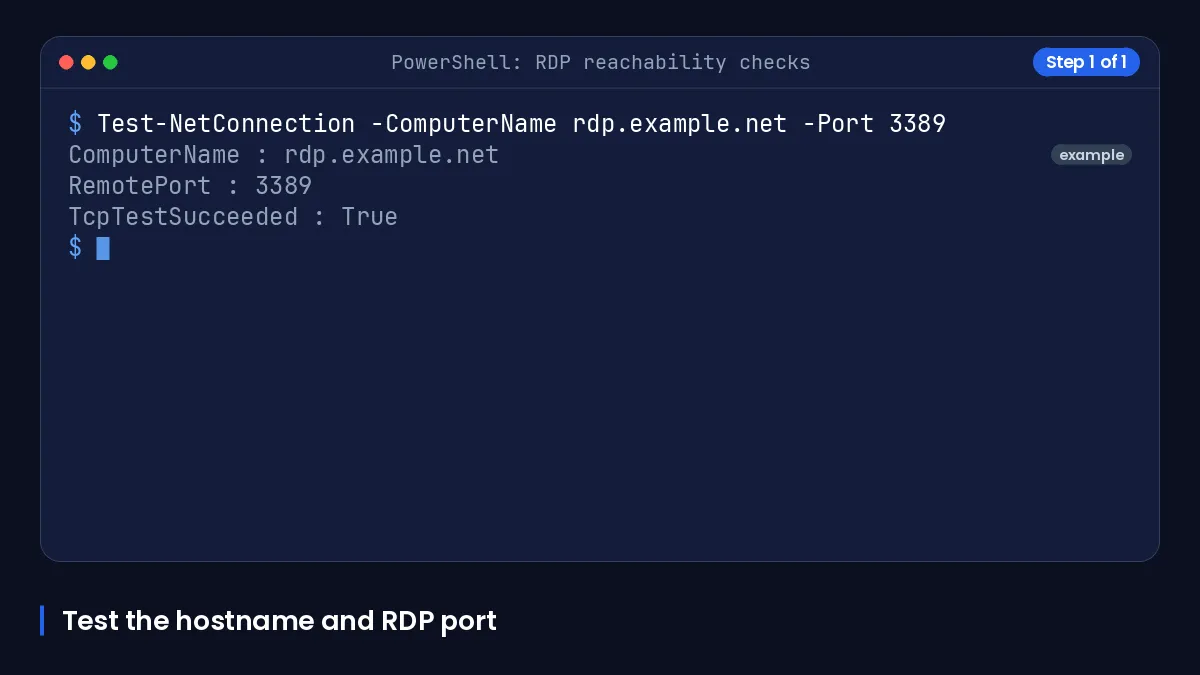
For a hostname and IP comparison, run these tests in sequence:
Test-NetConnection -ComputerName rdp.example.net -Port 3389
Test-NetConnection -ComputerName 203.0.113.10 -Port 3389
A result where TcpTestSucceeded is True indicates that the tested TCP path is reachable. A result where it is False indicates a connectivity issue that needs further investigation.
3. Interpret a Failed TCP Test
If both hostname and IP tests fail, investigate the permitted network path, configured port and server-side listener before focusing on credentials. If the hostname fails but the IP test succeeds, correct the DNS record or the client’s name-resolution path instead of changing RDP settings.
Step 2: Verify Firewall Rules, Remote Desktop and the Listener
4. Confirm Remote Desktop and Remote Desktop Services
On the server console or through an alternative authorised administration path, confirm that Remote Desktop is enabled and that Remote Desktop Services is available. Do not make this change from the only RDP session unless you have another way to reach the machine.
5. Enable the Applicable Built-In Inbound Firewall Rules
Microsoft identifies the built-in rules named Remote Desktop - User Mode (TCP-In) and Remote Desktop - User Mode (UDP-In) as rules to enable for applicable firewall profiles when troubleshooting inbound RDP. In an elevated PowerShell session, enable the Remote Desktop display group:
Get-NetFirewallRule -DisplayGroup "Remote Desktop" | Set-NetFirewallRule -Enabled True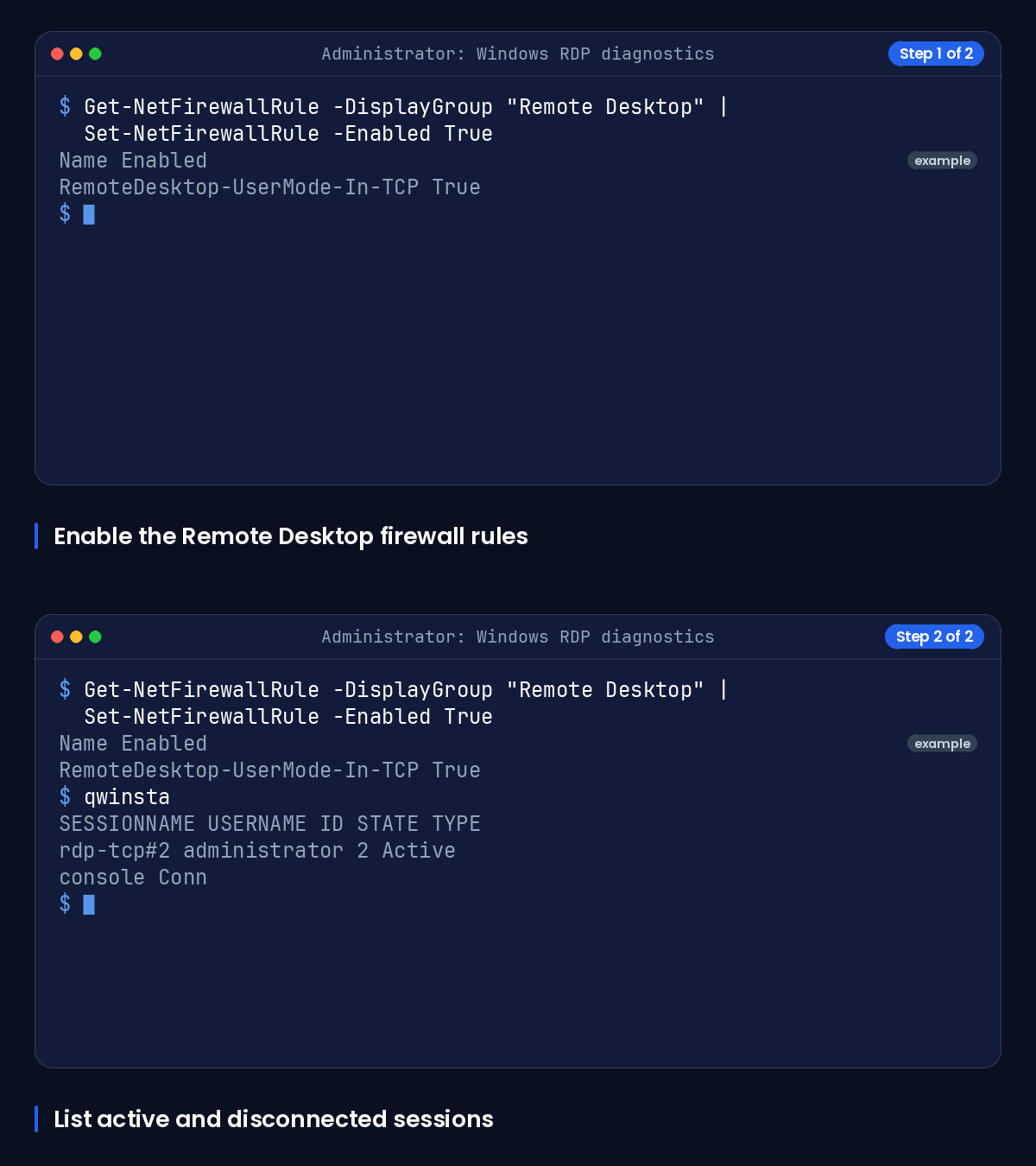
Do not disable Windows Firewall as a routine fix. Microsoft presents firewall disabling only as a temporary test to rule out the firewall, not as the normal corrective action. For a related port and firewall workflow, see Windows RDP setup guide.
6. Verify the RDP-TCP Listener with qwinsta
On the server, run the following command from an elevated Command Prompt or PowerShell session:
qwinstaAn rdp-tcp entry in the Listen state indicates that the RDP-TCP listener is running. If that entry is absent or not listening, stop here and investigate Remote Desktop Services and listener configuration through an alternative administrative path.
7. Check Port Ownership with netstat and tasklist
Check whether the configured RDP port is listening and note the PID shown in the final column. For the standard port, run:
netstat -ano | findstr :3389Replace the sample PID with the PID from your output to identify its associated service or process:
tasklist /svc /fi "PID eq 1234"If another service owns the configured RDP port, Microsoft recommends configuring that other application or service to use a different port rather than changing the RDP port as the first choice.
Step 3: Resolve Authentication, Encryption and Session-State Failures
8. Check Network Level Authentication Requirements
If the TCP test succeeds and the listener is running, review whether the server requires Network Level Authentication (NLA). Microsoft describes the option that allows connections only from computers running Remote Desktop with NLA as the more secure basic Remote Desktop connection option.
Confirm that the affected client supports the configured requirement and that you are using the intended account. Change NLA only under an approved access policy and only when you retain an alternative administration route.
9. Review Active and Disconnected Sessions
Run the following command on the server to review active and disconnected sessions:
query sessionRDP sessions can be Active, Idle, Locked or Disconnected. A disconnected session can continue running on the server after the client window closes, so identify the correct session before ending it under your organisation’s access procedure.
10. Check Time-Limit Policies and Intermittent Disconnect Patterns
Compare disconnect times with configured idle and connection limits. Microsoft documents RDS session time-limit controls including MaxIdleTime and MaxConnectionTime.
Disconnections without a consistent timing pattern are more likely to be caused by network issues than by session-configuration settings. Correlate client and server events with the failure time before changing policies.
When to Inspect Listener Certificates or Registry Settings
Inspect listener certificate or registry settings only after the name, TCP path, firewall, service and listener checks identify the listener as the likely fault. The RDP listener configuration is stored under HKEY_LOCAL_MACHINE\SYSTEM\CurrentControlSet\Control\Terminal Server\WinStations\, and the PortNumber value identifies the configured port.
Incorrect registry changes can cause serious problems. Back up the relevant registry configuration and use documented change control before modifying listener settings.
The table below maps common observations to a diagnostic command and the next safe action.
| Symptom | Diagnostic command | Expected observation | Next safe action |
|---|---|---|---|
| Hostname fails but IP works | Test-NetConnection -ComputerName rdp.example.net -Port 3389 | The hostname test fails while the IP test succeeds. | Check DNS records and the client name-resolution path; do not alter RDP listener settings. |
TcpTestSucceeded is False | Test-NetConnection -ComputerName 203.0.113.10 -Port 3389 | The tested TCP path reports False. | Check the permitted network path, port and server-side firewall rules. |
| Port reachable but no listener | qwinsta | No rdp-tcp line appears in the Listen state. | Check Remote Desktop Services and listener configuration through an alternative authorised path. |
| Port conflict | netstat -ano | findstr :3389 | A listening entry identifies a PID that is not associated with Remote Desktop Services. | Identify it with tasklist /svc /fi "PID eq 1234" and move the other service to a different port where appropriate. |
| Failure after credentials | query session | The listener is running, but session state or authentication evidence needs review. | Review NLA requirements, account access and the relevant Event Viewer channels. |
| Random disconnects | query session | Disconnects do not follow a consistent idle or connection-limit timing pattern. | Correlate client and server events and investigate the network path before changing time-limit policy. |
For further NLA and sign-in checks, refer to Windows RDP login guide.
Use a Suitable Windows RDP Configuration
When Admin Access Matters
After resolving the fault, choose a configuration that provides the administrative access and resources required for your permitted workload. Compare current Windows RDP configurations on Cheap Windows VPS rather than assuming a plan’s specifications or availability.
When a Private RDP Option Is More Appropriate
If your requirement calls for a more isolated option, review Private RDP plans and confirm the current configuration, location and availability before ordering.
The table below matches common administration and resource requirements to relevant DigiRDP options.
| Requirement | Plan | vCPU | RAM | Storage | Location | Setup time | Price (USD, live) |
|---|---|---|---|---|---|---|---|
| Browsing, email and light apps | USA ADMIN RDP #2 | 2 vCPU | 2 GB | 40Gb SSD/NVMe | New York/Dallas | Instant Setup or Up to 12hrs | $9.59/mo, billed annually ($115.10) |
| Several apps and multitasking | USA ADMIN RDP #4 | 3 vCPU | 4 GB | 80 GB SSD | New York/Dallas | Instant Setup or Up to 12hrs | $14.39/mo, billed annually ($172.70) |
| Heavy multitasking and developer tools | USA ADMIN RDP #6 | 6 vCPU | 8 GB | 120Gb SSD/NVMe | New York/Dallas | Instant Setup or Up to 12hrs | $27.19/mo, billed annually ($326.30) |
| Rendering, encoding or many sessions | USA ADMIN RDP #8 | 6 vCPU | 16 GB | 200Gb SSD/NVMe | New York/Dallas | Instant Setup or Up to 12hrs | $47.99/mo, billed annually ($575.90) |
Verify current specifications and availability on the relevant plan page before selecting a configuration.
Frequently Asked Questions
How to Fix Internal Error 0x4 Config Error?
Start with the target name and configured port, then run Test-NetConnection, verify the built-in firewall rules, check qwinsta for an rdp-tcp listener, and inspect port ownership. Do not begin with registry changes.
If TCP and the listener work, review NLA requirements, session state and the relevant Event Viewer entries at the time of the failure.
What Does Error Code 0x204 Extended Error Code 0x0 Mean in RDP?
Treat it as a connection symptom rather than proof of one fault. Use hostname-versus-IP testing, a TCP port test and listener verification to identify whether the failure is in name resolution, connectivity, the listener or a later sign-in stage.
How to Fix RDP Connection Issues
Record the failing target and time, test from another permitted client, compare hostname and IP behaviour, test the configured TCP port, then verify firewall rules, Remote Desktop Services and the RDP-TCP listener. Review authentication and session evidence only after the TCP path works.
What Does “Unknown Disconnection Reason 4” Mean?
It is not enough information to identify a unique cause. Check the relevant server and client logs at the matching timestamp, then use the TCP, listener and session checks in this guide to narrow the failure stage.
Why Does RDP Keep Disconnecting?
Check whether disconnects occur at a consistent idle or connection duration, which can point to session time limits. Disconnections without a consistent timing pattern are more likely to be caused by network issues than by session-configuration settings.
Sources
- General Remote Desktop connection troubleshooting - Windows Server | Microsoft Learn — learn.microsoft.com
- Remote Desktop Can't Connect to the Remote Computer - Windows Server | Microsoft Learn — learn.microsoft.com
- Troubleshoot Remote desktop disconnected errors - Windows Server | Microsoft Learn — learn.microsoft.com
- Troubleshoot Unexpected RDS Session Locks or Disconnections - Windows Server | Microsoft Learn — learn.microsoft.com
- Ports That Are Used by RDS - Windows Server | Microsoft Learn — learn.microsoft.com
Ready to deploy your own server?
Full admin access, DDoS protection and instant setup — pick a plan sized to your workload.
Explore Windows RDP plans