



On this page
You can self-host n8n on a Linux VPS with Docker Compose, a persistent volume for /home/node/.n8n, and a reverse proxy that publishes HTTPS while n8n listens on localhost. This approach keeps workflows, credentials and configuration separate from the application container so you can recreate or update that container safely.
This guide covers host sizing, Docker installation, persistent data, reverse-proxy settings, webhook configuration, restart recovery, updates, backups, restore testing and fault diagnosis.
Plan the host and prerequisites
n8n self-host requirements
Self-hosting n8n is an administrative task: you need a Linux VPS, sudo-capable access, a domain name, DNS control for a subdomain, and enough familiarity with containers to inspect logs and restore data. n8n recommends Docker for most self-hosting needs, and identifies server setup, container configuration, resource management, security and n8n configuration as required knowledge.
Choose a location that is appropriate for your users, webhook senders and connected services. You can review available regions on our digirdp data centre locations and compare current Linux capacity on Cloud VPS plans before ordering a host.
Size CPU, RAM and NVMe around workflow behaviour
Size the VPS from observed workflow behaviour rather than workflow count alone. A few light schedules need less capacity than concurrent webhooks, large binary files, long execution retention or database-backed deployments. Leave disk headroom for the operating system, container images, execution records and backups.
The table below matches low-volume personal workflows, webhook-heavy workloads, larger execution histories and database-backed deployments to DigiRDP VPS options; confirm current specifications and availability on the plan page.
| Requirement | Plan | vCPU | RAM | Storage | Location | Setup time | Price (USD, live) |
|---|---|---|---|---|---|---|---|
| Single small project or service | Cloud VPS Host IPV6 | 1 vCPU | 1 GB | 10 GB disk (RAID 50) | USA- New York | Instant Setup or Up to 12hrs | $1.00/mo, billed every 6 months ($6.00) |
| Builds, tests and a few containers | Cloud VPS Host Plus | 1 vCPU | 2 GB | 20 GB disk (RAID 50) | USA- New York | Instant Setup or Up to 12hrs | $5.00/mo |
| Larger repos, databases or several agents | Cloud VPS Host Pro | 3 vCPU | 4 GB | 40 GB disk (RAID 50) | USA- New York | Instant Setup or Up to 12hrs | $9.00/mo |
| Heavy builds, CI or many concurrent workloads | Cloud VPS Host Deluxe | 4 vCPU | 6 GB | 60 GB disk (RAID 50) | USA- New York | Instant Setup or Up to 12hrs | $14.99/mo |
Choose SQLite or PostgreSQL before deployment
n8n uses SQLite by default and also supports PostgreSQL. SQLite keeps the first deployment compact, whereas PostgreSQL separates application data from the n8n container and is the better operational fit when you need a dedicated database service. New deployments should not use MySQL or MariaDB because n8n deprecated support for them from n8n 1.0.
The table below compares the two supported choices so you can decide before creating persistent storage.
| Database | Operational fit | Concurrency and history | Backup scope | Persistence requirement |
|---|---|---|---|---|
| SQLite | Simple single-instance deployment | Review disk growth as execution history increases | Back up the n8n volume while the service is stopped | Keep /home/node/.n8n on a named volume |
| PostgreSQL | Dedicated database deployment | Use when you need database operations separated from the application container | Back up the database and the n8n volume | Retain the database storage and /home/node/.n8n |
Step 1: Prepare Ubuntu and install Docker Compose
Update the operating system
Start with a supported Ubuntu installation and an account that can use sudo. If you still need a server, review the Linux VPS choices on Linux VPS Hosting options. Update installed packages before adding Docker’s repository.
sudo apt-get update
sudo apt-get upgrade -y
Install Docker Engine and the Compose plugin
Docker’s Ubuntu instructions install Docker Engine and the Compose plugin from Docker’s official repository. Run these commands in order.
sudo apt-get install -y ca-certificates curl
sudo install -m 0755 -d /etc/apt/keyrings
sudo curl -fsSL https://download.docker.com/linux/ubuntu/gpg -o /etc/apt/keyrings/docker.asc
sudo chmod a+r /etc/apt/keyrings/docker.asc
Add the repository definition for the Ubuntu release running on this VPS.
echo "deb [arch=$(dpkg --print-architecture) signed-by=/etc/apt/keyrings/docker.asc] https://download.docker.com/linux/ubuntu $(. /etc/os-release && echo "${UBUNTU_CODENAME:-$VERSION_CODENAME}") stable" | sudo tee /etc/apt/sources.list.d/docker.list > /dev/null
sudo apt-get update
sudo apt-get install -y docker-ce docker-ce-cli containerd.io docker-buildx-plugin docker-compose-plugin
Verify the Docker daemon and Compose version
Check that the daemon is active and that the Compose plugin is available before creating application files.
sudo systemctl is-active docker
docker compose version
Step 2: Create the persistent n8n Compose deployment
Why the n8n volume must outlive the container
The official n8n Docker example mounts a named volume at /home/node/.n8n so data persists across container restarts. This directory remains important with PostgreSQL because it contains encryption keys, instance logs and source-control assets.
Create a directory that holds the Compose file and a backup directory with restricted access.
sudo mkdir -p /opt/n8n/backups
sudo chown -R $USER:$USER /opt/n8n
cd /opt/n8n
umask 077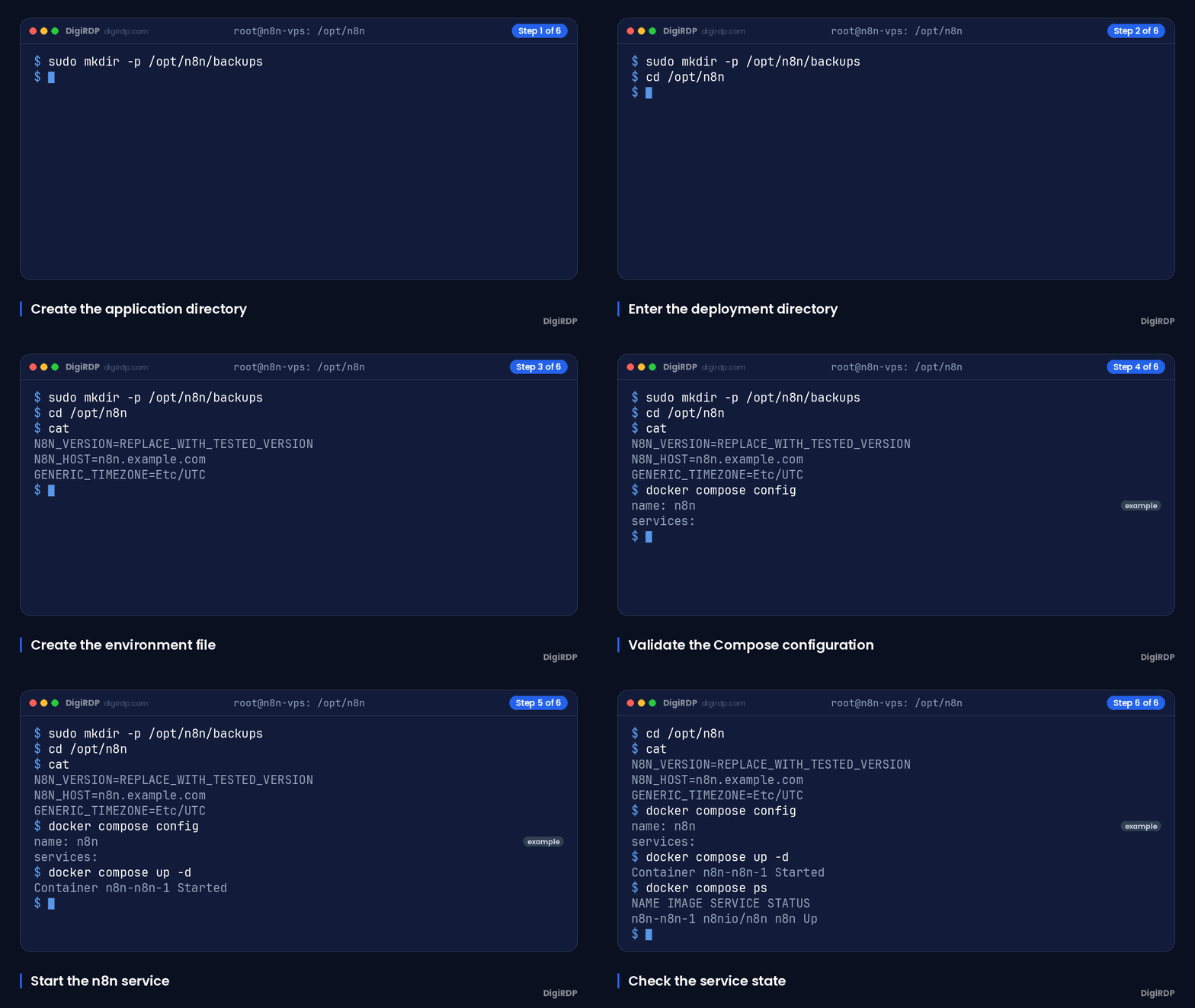
Set the image version and restart policy
Create an environment file and replace REPLACE_WITH_TESTED_VERSION with a published n8n version you have tested. Pinning a version prevents an unreviewed image change during a routine restart.
cat <<'EOF' > .env
N8N_VERSION=REPLACE_WITH_TESTED_VERSION
N8N_HOST=n8n.example.com
GENERIC_TIMEZONE=Etc/UTC
EOF
chmod 600 .env
Create the Compose file below. The unless-stopped policy restarts the container after it exits or after the Docker daemon restarts, except when you have manually stopped it.
cat <<'EOF' > compose.yaml
services:
  n8n:
    image: docker.n8n.io/n8nio/n8n:${N8N_VERSION}
    restart: unless-stopped
    ports:
      - "127.0.0.1:5678:5678"
    environment:
      - N8N_HOST=${N8N_HOST}
      - N8N_PROTOCOL=https
      - N8N_PORT=5678
      - N8N_EDITOR_BASE_URL=https://${N8N_HOST}/
      - N8N_WEBHOOK_URL=https://${N8N_HOST}/
      - N8N_PROXY_HOPS=1
      - GENERIC_TIMEZONE=${GENERIC_TIMEZONE}
      - TZ=${GENERIC_TIMEZONE}
      - N8N_ENFORCE_SETTINGS_FILE_PERMISSIONS=true
    volumes:
      - n8n_data:/home/node/.n8n
volumes:
  n8n_data:
    name: n8n_data
EOF
chmod 600 compose.yaml
Start the stack and inspect container logs
Validate the resolved configuration first, then start the service. The initial editor account setup is performed through the browser after HTTPS is working.
docker compose config
docker compose up -d
docker compose ps
docker compose logs --tail=100 n8n
Step 3: Put HTTPS and webhooks at the reverse-proxy boundary
Create the DNS A record
Create an A record for the value used as N8N_HOST, such as n8n.example.com, and point it to the VPS public IPv4 address. The official n8n Compose guidance uses a dedicated subdomain with an A record directed to the server IP address.
Wait for DNS to resolve to the expected address before requesting a TLS certificate.
getent hosts n8n.example.comBind n8n to 127.0.0.1:5678
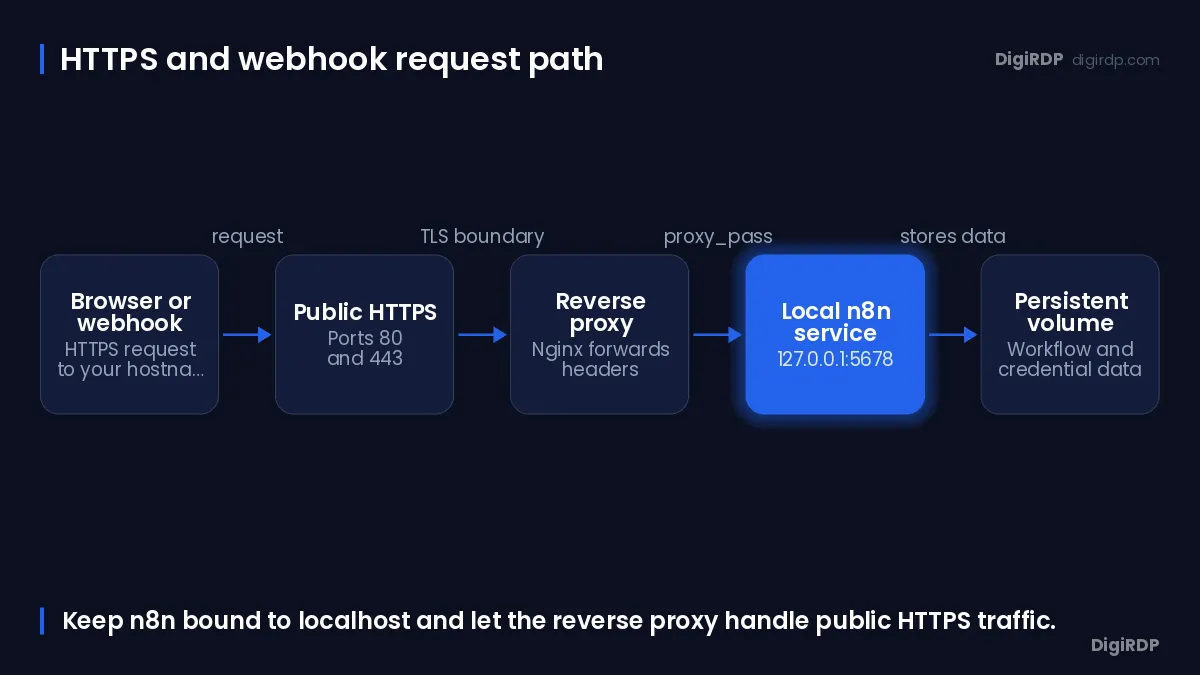
The Compose port mapping binds n8n to 127.0.0.1:5678, so the reverse proxy is the only local process that should publish public HTTP and HTTPS ports. The official n8n Compose example uses this localhost binding.
Install Nginx and allow its web ports through the host firewall if you manage the firewall with UFW.
sudo apt-get install -y nginx
sudo ufw allow 80/tcp
sudo ufw allow 443/tcp
Set N8N_WEBHOOK_URL and N8N_PROXY_HOPS
When n8n is behind one reverse proxy, set N8N_WEBHOOK_URL to the public HTTPS URL and N8N_PROXY_HOPS to 1. n8n uses these settings to display and register correct webhook URLs, while the proxy passes the original host, client address and HTTPS scheme in forwarded headers.
Create an Nginx server configuration, replacing the example hostname with the hostname in .env.
sudo tee /etc/nginx/sites-available/n8n > /dev/null <<'EOF'
server {
    listen 80;
    server_name n8n.example.com;

    location / {
        proxy_pass http://127.0.0.1:5678;
        proxy_http_version 1.1;
        proxy_set_header Host $host;
        proxy_set_header X-Real-IP $remote_addr;
        proxy_set_header X-Forwarded-For $proxy_add_x_forwarded_for;
        proxy_set_header X-Forwarded-Host $host;
        proxy_set_header X-Forwarded-Proto $scheme;
        proxy_set_header Upgrade $http_upgrade;
        proxy_set_header Connection "upgrade";
    }
}
EOF
sudo ln -s /etc/nginx/sites-available/n8n /etc/nginx/sites-enabled/n8n
sudo nginx -t
sudo systemctl reload nginx
Obtain and install a certificate with the ACME client appropriate to your chosen certificate workflow, then ensure the HTTPS server block keeps the same proxy headers and redirects HTTP to HTTPS. Do not expose port 5678 directly to the internet.
Verify HTTPS, editor access and a test webhook
After the certificate is active, open the HTTPS editor URL, complete the initial setup and activate a test webhook workflow. Confirm that its displayed production URL begins with your HTTPS hostname rather than http://localhost:5678.
curl -I https://n8n.example.com/
docker compose logs --tail=100 n8n
Step 4: Verify persistence and recover the service safely
Test a container restart without losing credentials
Create a non-sensitive test workflow and save it. Then recreate only the container; a named volume persists outside the container lifecycle and survives normal docker compose down and docker compose up cycles.
cd /opt/n8n
docker compose down
docker compose up -d
docker compose ps
Sign in again and confirm the saved workflow remains. Do not use the -v option during this test.
Recover after a VPS reboot or Docker daemon restart
After a reboot, check the Docker service and the Compose service state. The restart policy should bring the container back unless it was manually stopped.
sudo systemctl status docker --no-pager
docker compose -f /opt/n8n/compose.yaml ps
docker compose -f /opt/n8n/compose.yaml logs --tail=100 n8n
Roll back an unsuccessful image update
Keep the previously working image version in your change record. If an update fails, set N8N_VERSION in /opt/n8n/.env back to that known version, then pull and recreate the service without removing the volume.
cd /opt/n8n
nano .env
docker compose pull n8n
docker compose up -d
docker compose logs --tail=100 n8n
Avoid accidental named-volume deletion
docker compose down -v removes named volumes and permanently deletes their stored data. Use it only when you intentionally want to destroy the n8n instance and have verified backups.
If you need VPS-level recovery guidance, consult recovery guidance before taking destructive actions.
Step 5: Back up, update and monitor the instance
Back up configuration, encryption material and database data
A workflow export is useful for moving workflow definitions, but it is not a complete instance backup. For SQLite, stop n8n and archive the named volume, which includes its configuration and encryption material. For PostgreSQL, also take a database-native backup and retain it with the volume archive.
Run this archive procedure from /opt/n8n while the application is stopped.
cd /opt/n8n
docker compose stop n8n
docker run --rm -v n8n_data:/data:ro -v "$PWD/backups":/backup alpine tar -czf /backup/n8n-data-$(date +%F).tar.gz -C /data .
docker compose start n8n
ls -lh backups
Test a restore on a separate path or host
Test restore files away from the production volume. A valid archive is not enough: you need to confirm that the restored instance can read its configuration, credentials and workflows.
Create a temporary named volume and extract one backup into it for inspection or a separate Compose test.
cd /opt/n8n
docker volume create n8n_restore_test
docker run --rm -v n8n_restore_test:/data -v "$PWD/backups":/backup alpine sh -c 'tar -xzf /backup/n8n-data-YYYY-MM-DD.tar.gz -C /data'
docker volume inspect n8n_restore_test
Replace YYYY-MM-DD with the backup date. Remove the test volume only after the restore test is complete.
Update a pinned n8n image deliberately
n8n supports pulling either the stable image or a specific version tag. Keep a backup, change only the pinned version in .env, then pull, recreate and inspect logs before declaring the update complete.
cd /opt/n8n
nano .env
docker compose pull n8n
docker compose up -d
docker compose logs --tail=100 n8n
Review disk use, executions and security findings
Check filesystem capacity and Docker disk use regularly, especially when executions include binary data or execution history is retained for long periods. n8n provides a security audit through its CLI, API or node to check common instance security issues.
df -h
docker system df
docker compose exec n8n n8n audit
For related server administration material, see server administration articles.
Troubleshoot startup, proxy and data problems
Diagnose the layer that is failing before changing configuration: Compose state for container issues, local port checks for proxy issues, DNS for certificate problems and volume inspection for missing data.
The table below maps common symptoms to a focused diagnostic and a non-destructive corrective action.
| Symptom | Diagnostic command or check | Likely cause | Safe corrective action |
|---|---|---|---|
| Container restarts repeatedly | docker compose logs --tail=200 n8n | Invalid environment value, image issue or application startup error | Correct the reported setting, retain the volume, then run docker compose up -d |
| Proxy returns 502 | curl -I http://127.0.0.1:5678/ | n8n is stopped or Nginx cannot reach the local port | Start n8n, check its logs and validate the Nginx configuration |
| Webhook URL is incorrect | Inspect N8N_WEBHOOK_URL and N8N_PROXY_HOPS | Public URL or proxy-hop setting is absent or wrong | Set the public HTTPS URL and use 1 for one proxy, then recreate n8n |
| TLS validation fails | Check DNS resolution and whether ports 80 and 443 are reachable | DNS points elsewhere, firewall blocks validation or HTTP server block is invalid | Correct DNS and firewall rules, validate Nginx, then request the certificate again |
| Permission error in n8n files | docker compose logs --tail=200 n8n | Incorrect volume access or restrictive host configuration | Review the error and volume mount; do not delete the volume to resolve permissions |
| Disk exhaustion | df -h and docker system df | Execution data, backups or unused images consume storage | Back up required data, review retention and remove only confirmed unused Docker objects |
| Workflows or credentials disappear | docker volume inspect n8n_data | Deployment uses a different volume or the original volume was removed | Stop changes, identify the original volume and restore a tested backup if needed |
Use these checks to capture the current state before recovery.
cd /opt/n8n
docker compose ps
docker compose logs --tail=200 n8n
docker volume inspect n8n_data
sudo nginx -t
For host-level assistance and self-service resources, visit support resources.
Frequently Asked Questions
Can you still self-host n8n?
Yes. n8n documents Docker-based self-hosting and recommends Docker for most self-hosting needs. You remain responsible for the server, reverse proxy, updates, backups and security configuration.
How do you self-host n8n with Docker?
Install Docker Engine and the Compose plugin, create a Compose service with a named volume mounted at /home/node/.n8n, bind n8n to 127.0.0.1:5678, and put an HTTPS reverse proxy in front of it.
What are the requirements for self-hosting n8n?
You need a Linux VPS, sudo access, a domain and DNS access, Docker and Compose, a plan for persistent storage and backups, and the ability to maintain server and container security. Size CPU, RAM and disk around concurrency, execution history and workflow data.
How do you keep n8n data after restarting Docker?
Use a named Docker volume mounted to /home/node/.n8n. Normal docker compose down and docker compose up operations retain that volume, but docker compose down -v deletes it.
How do you back up and restore a self-hosted n8n instance?
For SQLite, stop n8n and archive the named volume. For PostgreSQL, back up both the database and the n8n volume because the volume still contains encryption keys and other instance assets. Test extraction into a separate volume or host before relying on a backup.
How do you configure HTTPS and webhooks for self-hosted n8n?
Point a DNS A record at the VPS, bind n8n only to localhost, and configure the reverse proxy to terminate HTTPS and pass forwarded headers. Set N8N_WEBHOOK_URL to the public HTTPS address and set N8N_PROXY_HOPS=1 when there is one reverse proxy.
Sources
- Install Docker Engine on Ubuntu | Docker Docs — docs.docker.com
- Install with Docker | Deploy | n8n Docs — docs.n8n.io
- Database | Deploy | n8n Docs — docs.n8n.io
- Use Docker Compose | Deploy | n8n Docs — docs.n8n.io
- Configure webhook URLs with reverse proxy | Deploy | n8n Docs — docs.n8n.io
- Start containers automatically | Docker Docs — docs.docker.com
- Docker Compose Quickstart | Docker Docs — docs.docker.com
- Run security audits | Deploy | n8n Docs — docs.n8n.io
Ready to deploy your own server?
Full admin access, DDoS protection and instant setup — pick a plan sized to your workload.
Explore Cloud VPS plans