



On this page
When RDP is not working on Windows 11, first confirm that the target PC runs Pro, Enterprise or Education, is awake, and has Remote Desktop enabled. Then check the Remote Desktop services and listener, Windows Firewall, TCP port reachability, saved credentials, Network Level Authentication and name resolution in that order.
This guide separates host, client, network and update-related faults, so you can identify the failed layer without changing unsupported settings.
Start With the Host Requirements
An incoming Remote Desktop host must be powered on, connected to the network, configured for Remote Desktop and reachable through its firewall. A PC that is off, asleep or hibernating cannot accept an RDP connection.
Step 1: Confirm the Windows edition
On the target PC, open Settings > System > About and check the Windows specifications. Windows 11 Pro, Enterprise and Education can act as incoming Remote Desktop hosts; Windows 11 Home can be an RDP client but cannot act as an incoming host.
To record the edition and version from an elevated Command Prompt, run:
systeminfo | findstr /B /C:"OS Name" /C:"OS Version"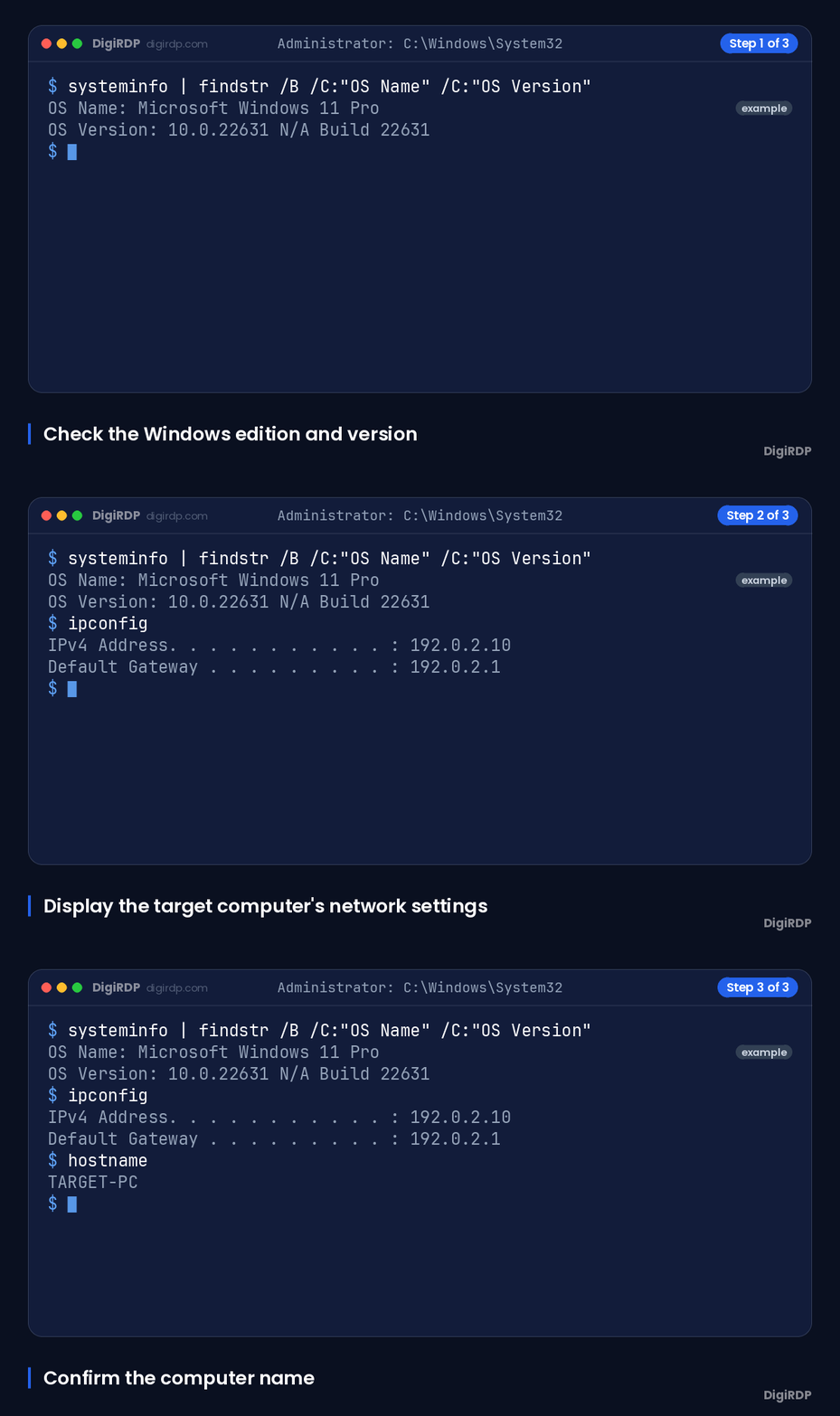
Step 2: Check power, sleep and network state
Keep the target PC powered on and prevent it from entering sleep while you test. In Settings > System > Power & battery > Screen and sleep, review the sleep setting and confirm that the target has an active network connection.
Step 3: Record the target IP address and computer name
Use the target PC's IPv4 address for an initial test and record its computer name for a later name-resolution test. Run this command on the target PC:
ipconfigUse the IPv4 address shown for the active network adapter. To display the computer name, run:
hostnameEnable Incoming Remote Desktop on the Target PC
Step 4: Open System > Remote Desktop
On a supported host edition, open Settings > System > Remote Desktop. This is the supported Windows 11 location for the incoming RDP setting.
Step 5: Enable Remote Desktop and confirm access
Switch Remote Desktop to On and select Confirm when Windows asks for confirmation. This enables the host-side feature; you should still test the listener and firewall below. For connection basics after enabling the host, see RDP access basics.
Step 6: Verify the account and Remote Desktop Users membership
Use an account that is permitted to sign in remotely. In Settings > System > Remote Desktop, select Remote Desktop users, then add the required standard user if it is not already authorised. An administrator account is normally permitted; apply your organisation's access policy before adding other users.
Check the Remote Desktop Services and Listener
Step 7: Check TermService and UmRdpService
Open Services by running services.msc, then find Remote Desktop Services and Remote Desktop Services UserMode Port Redirector. Their service names are TermService and UmRdpService; check that both are running during troubleshooting on the target and client computers.
To check their state from an elevated Command Prompt on the target, run:
sc query TermService
sc query UmRdpService
Look for STATE showing RUNNING. If a service does not start, do not change unrelated registry values; capture the error and escalate it to your internal administrator or Microsoft Support.
Step 8: Confirm that TCP 3389 is listening
TCP port 3389 is the standard RDP listener port unless the host has been configured to use another port. On the target, run the following command in an elevated Command Prompt:
netstat -ano | findstr :3389An active default listener shows a TCP entry for port 3389 with the state LISTENING and a process ID in the final column.
Step 9: Match the listener process ID to TermService
Compare the PID from the listening port entry with the PID assigned to TermService. A different process listening on TCP 3389 indicates a port conflict that can prevent RDP from working.
Run this command on the target, replacing PID with the number from the netstat result:
tasklist /svc /FI "PID eq PID"If the result does not associate that PID with TermService, have the responsible administrator identify the conflicting application before changing its configuration.
Test Firewall Rules and Network Reachability
Step 10: Allow Remote Desktop through Windows Firewall
On the target, open Windows Security > Firewall & network protection > Allow an app through firewall and ensure Remote Desktop is allowed for the network profile in use. Windows Firewall and any other firewall on the route must allow the configured RDP port, usually TCP 3389.
You can inspect the enabled built-in Remote Desktop firewall rules from an elevated PowerShell window:
Get-NetFirewallRule -DisplayGroup "Remote Desktop" | Select-Object DisplayName, Enabled, Profile, Direction, Action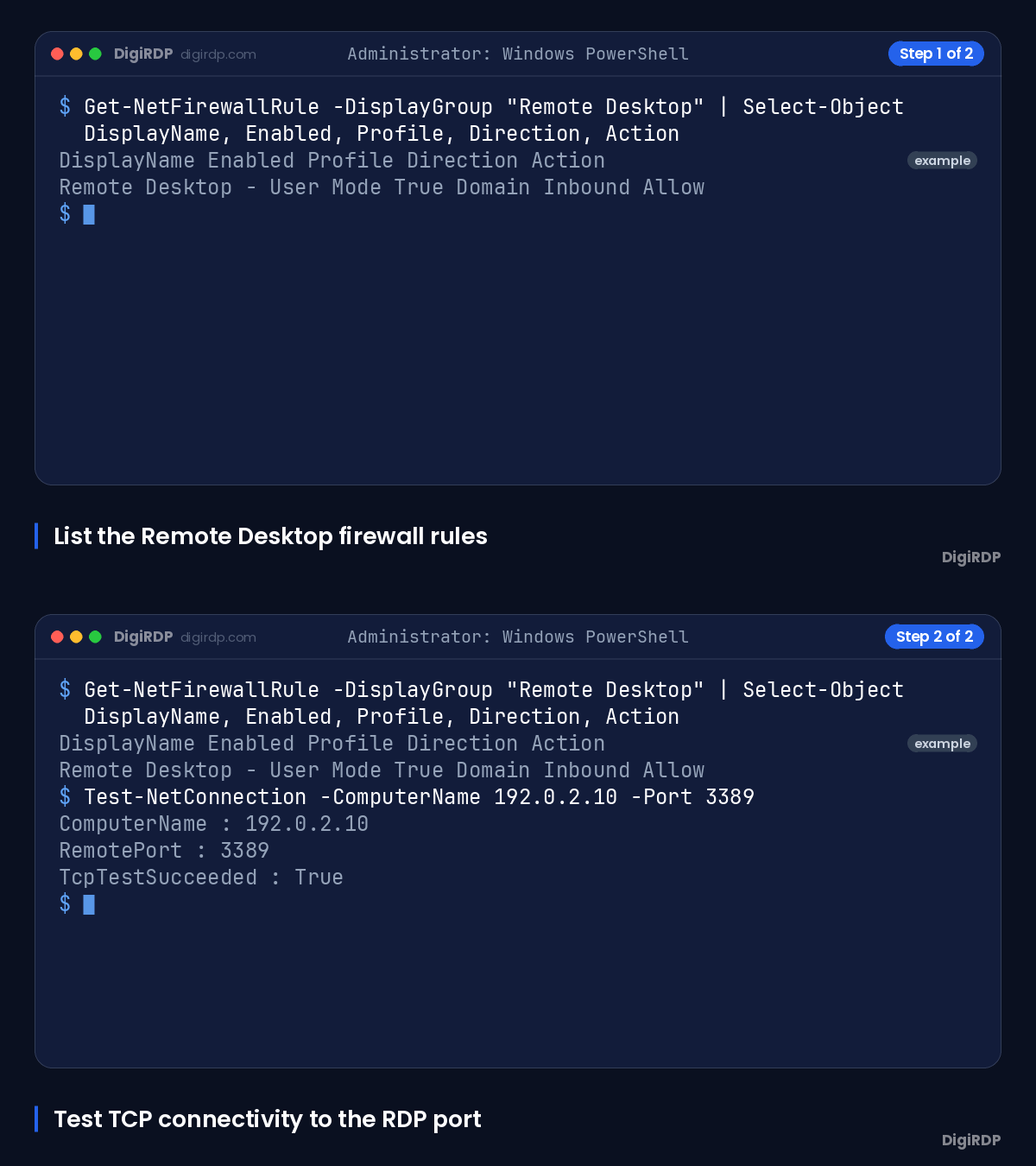
Step 11: Test TCP port 3389 from the client
From the client PC, test the target's IPv4 address before testing its name. Replace 192.0.2.10 with the actual target address:
Test-NetConnection -ComputerName 192.0.2.10 -Port 3389Microsoft also documents the Sysinternals psping utility as a port-reachability test for 3389. Use the Microsoft-provided utility and replace the example address:
psping -accepteula 192.0.2.10:3389Step 12: Interpret reachable and unreachable port results
If Test-NetConnection reports TcpTestSucceeded : True, the client can reach the tested port and you should continue with credentials, NLA and hostname checks. If it reports False, recheck the target listener and Windows Firewall, then have the network administrator check routers, VPN policies and other access controls on the path. A related connectivity checklist is available at RDP firewall checks.
Resolve Sign-In, NLA and Name Resolution Failures
Step 13: Remove or update saved Remote Desktop credentials
When the host is reachable but sign-in fails, open Credential Manager > Windows Credentials on the client. Remove the saved entry for the target, then reconnect and enter the current account name and password. A changed Windows account password can cause a previously working connection to fail until saved RDP credentials are updated.
Step 14: Check Network Level Authentication compatibility
On the target, open Settings > System > Remote Desktop and review the Network Level Authentication option. A host can reject a connection when it requires NLA and the client is not configured or supported for that requirement. Keep NLA enabled where the client supports it, and involve your administrator if compatibility needs to be assessed.
Step 15: Compare hostname and IP-address connections
In Remote Desktop Connection, test the target IPv4 address and then the computer name using the same account. If the IP address works but the name fails, the likely fault is DNS name resolution because using a PC name depends on the network resolving it correctly.
From the client, query the name directly:
nslookup TARGET-PC-NAMEReplace TARGET-PC-NAME with the recorded computer name. A result that returns no usable address should be corrected in the relevant DNS or local name-resolution configuration rather than by changing RDP settings.
Step 16: Consider Microsoft Entra requirements where applicable
For an organisation using Microsoft Entra authentication for Remote Desktop, verify the documented prerequisites with the administrator. Microsoft states that both the local and remote devices must run supported Windows versions for this connection scenario.
Review Windows Updates and Isolate the Failure
Step 17: Check the installed Windows 11 version and recent updates
Open Settings > System > About to record the version and OS build, then open Settings > Windows Update > Update history to record recently installed updates. Microsoft identified Windows 11 version 24H2 Remote Desktop freezing and unexpected disconnection issues after certain 2025 updates; check the installed build and applicable Microsoft update guidance before changing deeper configuration.
To display the version and build from the target, run:
winverTroubleshooting matrix: symptom, test and next action
The table below maps common visible symptoms to the Windows check that isolates the next layer.
| Visible symptom | Layer to test | Exact Windows menu or command | Expected result | Next action |
|---|---|---|---|---|
| Windows 11 Home is the target host | Host edition | Settings > System > About | Pro, Enterprise or Education is required for incoming hosting. | Use a supported Windows host edition or a remote Windows environment. |
| Remote Desktop toggle is off | Host configuration | Settings > System > Remote Desktop | Remote Desktop is On. | Enable it and confirm the prompt. |
| Connection is refused locally | Services | sc query TermService and sc query UmRdpService | Both report RUNNING. | Record service errors and escalate if a service cannot start. |
| No default listener | Listener | netstat -ano | findstr :3389 | A TCP 3389 entry shows LISTENING. | Recheck Remote Desktop and services, then investigate the host configuration. |
| Port test fails from client | Firewall or network path | Test-NetConnection -ComputerName IP -Port 3389 | TcpTestSucceeded is True. | Check firewall rules and escalate upstream routing or VPN policy checks. |
| Host is reachable but sign-in fails | Credentials | Credential Manager > Windows Credentials | Saved credentials match the current account password. | Remove the stale entry and reconnect with current credentials. |
| Client is rejected before desktop sign-in | NLA | Settings > System > Remote Desktop | Client supports the host NLA requirement. | Verify client compatibility with the administrator. |
| IP works but hostname fails | Name resolution | nslookup TARGET-PC-NAME | The name resolves to the intended target address. | Correct DNS or the local name-resolution record. |
When to involve your internal administrator or Microsoft Support
Involve your internal administrator when the fault is an organisation-managed firewall, VPN, DNS, account policy, Microsoft Entra configuration or update deployment. If Remote Desktop services fail to start after the basic checks, Microsoft recommends contacting Microsoft Support.
Choose a Remote Windows Environment When a Local Host Is Unsuitable
Compare admin access, location and resource requirements
If the local PC runs Windows 11 Home or cannot remain available as a host, use a remotely hosted Windows desktop rather than unsupported local workarounds. Verify current plan details on the relevant plan page before selecting an option.
The table below matches administrative access, location and resource needs to available DigiRDP RDP or private RDP choices.
| Requirement | Plan | vCPU | RAM | Storage | Location | Setup time | Price (USD, live) |
|---|---|---|---|---|---|---|---|
| Browsing, email and light apps | USA ADMIN RDP #2 | 2 vCPU | 2 GB | 40Gb SSD/NVMe | New York/Dallas | Instant Setup or Up to 12hrs | $9.59/mo, billed annually ($115.10) |
| Several apps and multitasking | USA ADMIN RDP #4 | 3 vCPU | 4 GB | 80 GB SSD | New York/Dallas | Instant Setup or Up to 12hrs | $14.39/mo, billed annually ($172.70) |
| Heavy multitasking and developer tools | New York Ryzen RDP #6 | 6 vCPU | 8 GB DDR4 | 120 GB NVMe | USA-New York | Instant Setup or Up to 12hrs | $27.19/mo, billed annually ($326.30) |
| Rendering, encoding or many sessions | USA ADMIN RDP #8 | 6 vCPU | 16 GB | 200Gb SSD/NVMe | New York/Dallas | Instant Setup or Up to 12hrs | $47.99/mo, billed annually ($575.90) |
Review available RDP and private RDP options
You can review hosted Windows desktop options on Windows RDP plans. If you need a more isolated remote environment, review our private rdp plans and compare the current location and resource details before ordering.
Frequently Asked Questions
How do I enable RDP in Windows 11?
On a supported Windows 11 host edition, open Settings > System > Remote Desktop, switch Enable Remote Desktop to On and confirm. Then confirm that the intended account is permitted to sign in remotely.
How do I fix RDP not connecting?
Check the host edition, power state and network connection first. Then verify Remote Desktop is enabled, TermService and UmRdpService are running, TCP 3389 is listening, the firewall permits RDP, and the client can reach the port.
Why isn't my RDP working after updating to Windows 11 24H2?
Record the OS build and recent updates in Settings > Windows Update > Update history. Microsoft documented 24H2 Remote Desktop freezing and unexpected disconnections after certain 2025 updates, so check the applicable Microsoft update guidance before changing firewall, services or NLA settings.
Is Windows 11 Home compatible with incoming Remote Desktop connections?
No. Windows 11 Home can be used as an RDP client, but it cannot act as an incoming Remote Desktop host. If you need a remote Windows desktop instead, compare the relevant options at Cheap Windows VPS — Full Admin Access from $6.99/mo.
How do I check whether Windows 11 RDP port 3389 is reachable?
From the client, run Test-NetConnection -ComputerName IP -Port 3389 with the target IP address. A result of TcpTestSucceeded : True means the tested TCP port is reachable from that client.
Why can I connect to RDP by IP address but not by hostname?
The host is likely reachable, while its name is not resolving correctly. Run nslookup for the computer name and correct the DNS or local name-resolution entry if it does not return the target address.
Sources
- Enable Remote Desktop on your PC | Microsoft Learn — learn.microsoft.com
- General Remote Desktop connection troubleshooting - Windows Server | Microsoft Learn — learn.microsoft.com
- Ports That Are Used by RDS - Windows Server | Microsoft Learn — learn.microsoft.com
- Remote Desktop Can't Connect to the Remote Computer - Windows Server | Microsoft Learn — learn.microsoft.com
- Remote Desktop clients FAQ | Microsoft Learn — learn.microsoft.com
- Connect to remote Microsoft Entra joined device | Microsoft Learn — learn.microsoft.com
- February 11, 2025—KB5051987 (OS Build 26100.3194) for Windows | Microsoft Support — support.microsoft.com
Ready to deploy your own server?
Full admin access, DDoS protection and instant setup — pick a plan sized to your workload.
Explore Windows RDP plans