



On this page
Windows RDP works on a Mac through Microsoft’s Windows App, which replaces the older Remote Desktop client for macOS. Add the Windows PC name or IP address, sign in with the supplied Windows credentials, then configure display, clipboard, folder and keyboard settings for the way you work.
This guide covers the connection workflow, Mac-specific display and input options, local-file access, and checks to make after your first login.
What You Need Before Connecting
Install Windows App from the Mac App Store
Microsoft has replaced the older Remote Desktop client for macOS with Windows App, which is available from the Mac App Store. If you need a Windows endpoint before configuring the Mac client, review Windows RDP plans.
To open the App Store from Terminal, run:
open -a "App Store"Search for Windows App, install it, and then open it from Applications.
Collect the PC Name or IP Address and Sign-in Details
Keep the supplied PC name or IP address, Windows username and password ready. Start a remote PC connection by adding the remote PC name in Windows App and selecting that PC.
Decide Whether to Add a PC or Open an RDP File
Use an added PC connection when you want saved settings such as a friendly name, display preferences and redirection choices. If you received an .rdp file, you can open it with Windows App and enter credentials when prompted.
Add Your Windows PC in Windows App
Enter the PC Name and User Account
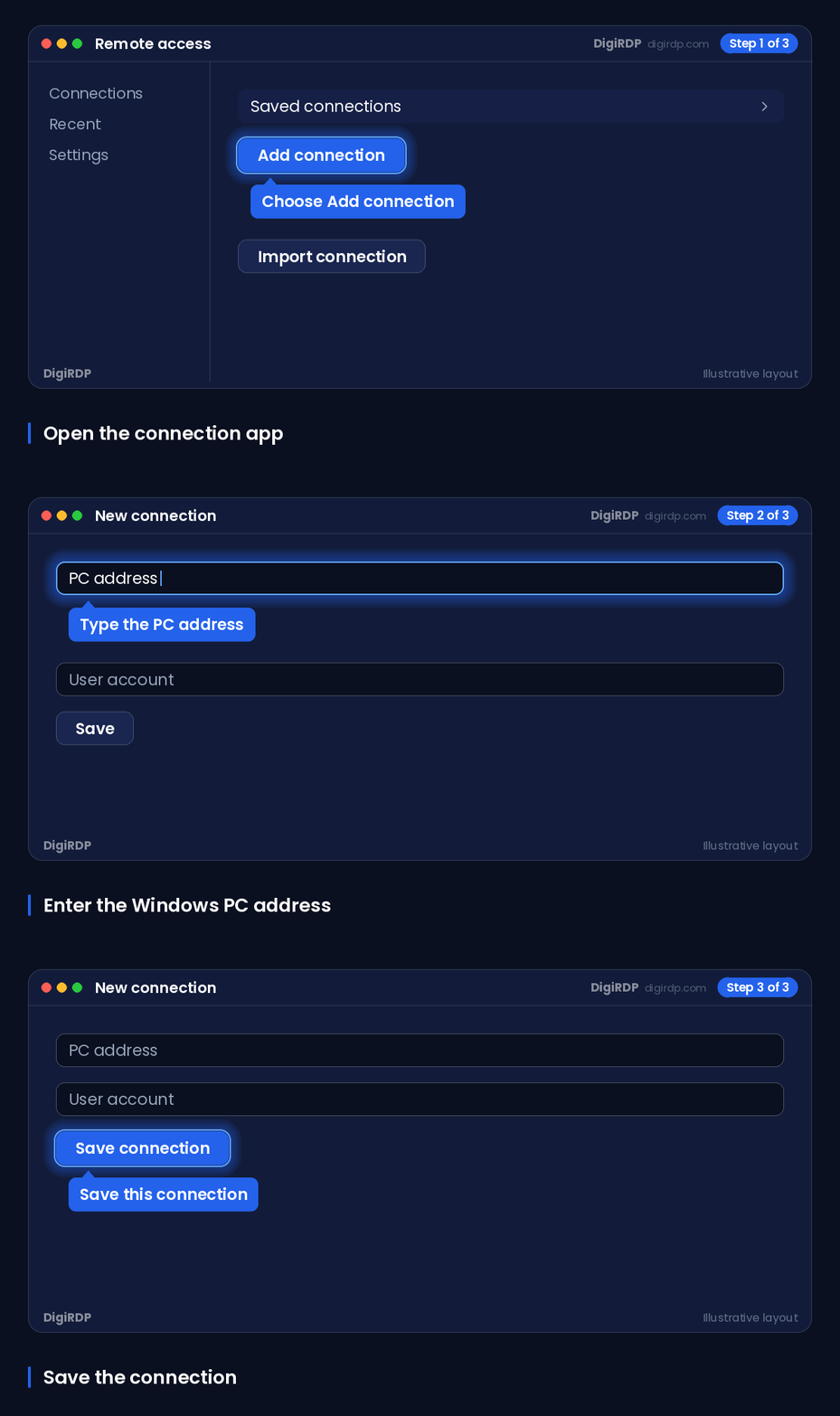
Open Windows App, select the option to add a PC, and enter the PC name or IP address in the PC name field. Add the Windows user account if you want the client to retain the account choice; otherwise, select the account prompt at connection time.
To open Windows App from Terminal, run:
open -a "Windows App"Windows App for macOS lets you configure a remote PC connection with a user account, friendly name, display settings, and device or audio redirection.
Save a Friendly Name and Connect
Set a clear friendly name, such as the server location or workload, save the connection, and select its tile to connect. If you need the connection details or credential guidance supplied with your service, see Mac RDP connection guide.
Open a Supplied RDP File on macOS
In Finder, locate the supplied .rdp file and open it with Windows App. Windows App starts the connection and prompts for login credentials.
To show your Downloads folder in Finder from Terminal, run:
open ~/DownloadsChoose Display and Multi-Monitor Settings
Use Full Screen, Custom Resolution or Fit to Window
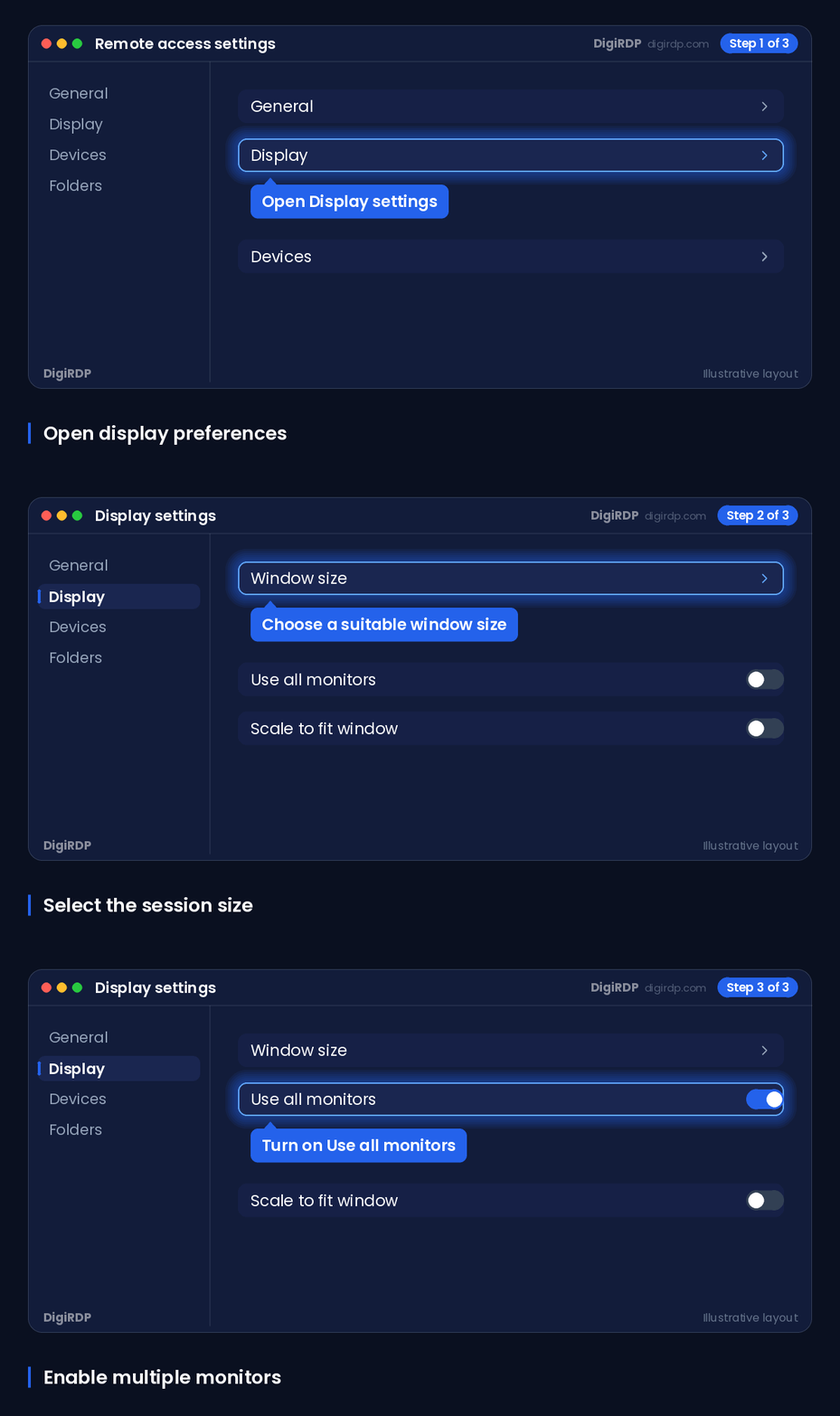
Open the saved PC’s settings and choose the display behaviour that suits your Mac: a custom resolution, full-screen mode, or fit-to-window scaling. Windows App for macOS supports these options and can update resolution when the window is resized.
Balance Retina Optimisation and Bandwidth Use
Enable Retina optimisation when you need the remote desktop to match the Mac display more closely. Microsoft states that Retina optimisation uses four times more bandwidth, so disable it first if display responsiveness is poor.
Avoid Blank Screens with Multiple Displays
Windows App can use all local monitors for a remote session, but it cannot select only particular monitors on macOS. For a blank display with multiple monitors, enable Use all monitors in Windows App or enable Displays have separate Spaces in macOS Mission Control.
To open macOS settings from Terminal, run:
open -a "System Settings"If responsiveness is important, a location closer to you can be worth considering; review datacenter.
Set Up Clipboard and Local Folder Access
Clipboard redirection and redirected folders solve different problems: clipboard suits small transfers, while a redirected folder provides a persistent location in File Explorer.
The table below compares the available transfer methods and their practical limits.
| Method | Suitable task | Supported content | Access pattern | Practical limitation |
|---|---|---|---|---|
| Bidirectional clipboard | Copying items in either direction | Text, images and files | Copy and paste between Mac and session | Must be enabled and permitted by the connection or administrator policy |
| One-way clipboard | Restricting transfers to a single direction | Text, images and files in the allowed direction | Copy on one device and paste on the other | Choose either local-to-remote or remote-to-local |
| Redirected local folder | Working with a regular local folder | Files held in the chosen folder | Network drive in remote File Explorer | May be read-only or unavailable when folder redirection is disabled by policy |
Choose Clipboard Transfer Direction
Edit the saved PC connection, enable customised device settings where available, and select Bidirectional, Local to Remote Only, Remote to Local Only, or Disabled for Clipboard. When enabled and permitted, clipboard redirection can transfer text, images and files.
Redirect One Folder for a Single PC Connection
Edit the device, enable customised settings, open the Folders tab, select Redirect folders, and use the plus control to add the Mac folder. In the Windows session, the redirected folder appears as a network drive in File Explorer and can be configured as read-only.
Redirect a Folder Across Supported Sessions
From the macOS menu bar, choose Windows App, then Settings, open General, select Choose Folder, and select the local folder. This sets folder redirection for supported sessions.
Choose Clipboard Transfer or a Redirected Folder
Use clipboard for individual text, images or files. Use a redirected folder when you need an ongoing File Explorer location. If the Folders tab is missing, folder redirection may have been disabled by an administrator.
Use Mac Keyboard Shortcuts in a Windows Session
Open Windows Security and the Start Menu
Use Fn-Control-Option-Backspace for the Windows Security dialog and Option-F3 for the Start menu. On Mac keyboards that use function keys as standard function keys, you may not need to include Fn with the Windows Security shortcut.
Handle Command, Control, Option and Windows-Key Differences
Use the Windows App shortcut mappings rather than assuming that every Command, Control or Option combination has a direct Windows equivalent. Test critical shortcuts inside the session before relying on them for regular work.
Check the Mac and Windows Keyboard Layouts
Shortcut behaviour can vary because the local Mac and remote Windows sessions may use different keyboard layouts. Shortcut redirection currently works only with English keyboard layouts or layouts similar to English, so check both layouts if characters or shortcuts do not match.
Troubleshoot Common Mac-to-Windows RDP Problems
Work through the symptom that matches the failure, then reconnect after changing a saved connection setting.
| Symptom | Check | Resolution |
|---|---|---|
| Connection does not start | PC name or IP address and network reachability | Re-enter the supplied endpoint, then select the saved PC again. |
| Credentials fail | Windows username and password | Enter the supplied Windows account details and check the username format with the service documentation. |
| Clipboard is unavailable | Clipboard direction and connection policy | Enable the required direction in customised device settings; policy can prevent redirection. |
| Folder is unavailable | Folders tab and selected local folder | Enable Redirect folders and add the folder again. A hidden Folders tab can indicate administrator policy. |
| Display is blank or blurry | Monitor and Retina settings | Use all monitors or separate Spaces for blank displays; adjust resolution, fit-to-window, or Retina optimisation for clarity and responsiveness. |
| Keys are unexpected | Mac and Windows keyboard layouts | Align layouts where possible and use the documented Windows App shortcut mappings. |
Connection Does Not Start or Credentials Fail
Confirm that the PC name or IP address was copied correctly and that you are using the supplied Windows credentials. For broader connection checks, see RDP error checks.
Clipboard or Redirected Folder Is Unavailable
Check the saved PC connection’s customised device settings. Clipboard or folder redirection can be unavailable when the connection or administrator policy does not permit it.
The Remote Display Is Blank, Small or Blurry
For a blank multi-monitor desktop, use all monitors or enable separate Spaces. For a small or blurry desktop, revise the custom resolution, full-screen setting, fit-to-window option, or Retina optimisation.
Keys Produce Unexpected Characters
Compare the active keyboard layout on your Mac with the Windows keyboard layout in the session. Layout differences can cause mismatched shortcut interpretation.
Choose a DigiRDP Windows Plan for Mac Access
Match Resources and Location to the Workload
The table below matches common Mac-to-Windows workloads with relevant DigiRDP RDP and private RDP options.
| Requirement | Plan | vCPU | RAM | Storage | Location | Setup time | Price (USD, live) |
|---|---|---|---|---|---|---|---|
| Browsing, email and light apps | USA ADMIN RDP #2 | 2 vCPU | 2 GB | 40Gb SSD/NVMe | New York/Dallas | Instant Setup or Up to 12hrs | $9.59/mo, billed annually ($115.10) |
| Several apps and multitasking | USA ADMIN RDP #4 | 3 vCPU | 4 GB | 80 GB SSD | New York/Dallas | Instant Setup or Up to 12hrs | $14.39/mo, billed annually ($172.70) |
| Heavy multitasking and developer tools | New York Ryzen RDP #6 | 6 vCPU | 8 GB DDR4 | 120 GB NVMe | USA-New York | Instant Setup or Up to 12hrs | $27.19/mo, billed annually ($326.30) |
| Rendering, encoding or many sessions | USA ADMIN RDP #8 | 6 vCPU | 16 GB | 200Gb SSD/NVMe | New York/Dallas | Instant Setup or Up to 12hrs | $47.99/mo, billed annually ($575.90) |
Confirm current specifications and availability on the relevant plan page before ordering. You can review the current Windows RDP catalogue at Buy RDP guide and compare private RDP options at private rdp.
Review Setup and Support Information Before Ordering
Review the plan page for the current setup information, operating-system choice, location and resource specification that fit your intended Windows workload.
Frequently Asked Questions
How Do I Install Windows App on My Mac?
Open the Mac App Store, search for Windows App, install it, and launch it from Applications. Microsoft has replaced the older Remote Desktop client for macOS with Windows App.
How Do I Connect to a Windows PC from a Mac Using Windows App?
In Windows App, add a PC, enter the supplied PC name or IP address, choose or enter the Windows user account, save the connection, and select its tile to connect.
How Do I Open an RDP File on a Mac?
Locate the supplied .rdp file in Finder and open it with Windows App. The app starts the connection and prompts for login credentials.
How Do I Share a Mac Folder with a Windows RDP Session?
Edit the saved device, enable customised settings, open Folders, enable Redirect folders, and add the local folder. The folder appears as a network drive in remote Windows File Explorer when folder redirection is allowed.
Does RDP Work on a Mac?
Yes. Windows App supports macOS as a client platform for remote PC connections and Remote Desktop Services.
Can Windows RDP to Mac?
This guide covers a Mac connecting to a Windows PC through Windows App. Connecting from Windows to a Mac is a separate remote-access configuration and depends on the remote-access service enabled on the Mac.
Sources
- Connect to Windows devices and apps with Windows App - Windows App | Microsoft Learn — learn.microsoft.com
- How to use Remote Desktop | Microsoft Support — support.microsoft.com
- learn.microsoft.com — learn.microsoft.com
- Configure display settings in Windows App - Windows App | Microsoft Learn — learn.microsoft.com
- Compare Windows App features across platforms and devices - Windows App | Microsoft Learn — learn.microsoft.com
- Redirect local devices, audio, and folders in Windows App - Windows App | Microsoft Learn — learn.microsoft.com
- Use keyboard, mouse, touch, and pen in Windows App - Windows App | Microsoft Learn — learn.microsoft.com
- Known issues and limitations of Windows App - Windows App | Microsoft Learn — learn.microsoft.com
Ready to deploy your own server?
Full admin access, DDoS protection and instant setup — pick a plan sized to your workload.
Explore Windows RDP plans