



On this page
RDP access lets you use a Windows computer or server remotely through Remote Desktop Protocol, with the remote machine processing the work and sending its display to your device. A successful connection needs a reachable host, Remote Desktop enabled, valid credentials and permission for the account to sign in remotely.
This guide separates the protocol, client, host, session and permissions so you can identify the access you have, the access you need and what may be missing.
What RDP Access Means
Remote Desktop Protocol (RDP) is a Microsoft protocol that provides remote display and input capabilities for Windows applications running on a server over a network connection. RDP access is therefore interactive desktop access, not merely permission to download a file or access a shared folder.
The table below separates the layers often called “RDP access”, which are not interchangeable.
| Term | What it is | Why it matters |
|---|---|---|
| RDP protocol | The network protocol carrying display and input data. | It defines how a remote desktop connection communicates. |
| RDP client | The application or browser-based client used to start a connection. | You use it to enter the target address and credentials. |
| RDP server or host | The Windows computer or server receiving incoming Remote Desktop connections. | It runs the applications and desktop you use remotely. |
| Windows session | Your signed-in desktop environment on the host. | It contains the programs, files and settings available to your account. |
| User account | The Windows identity used to authenticate. | Its credentials and assigned rights determine what you can do. |
| Remote sign-in permission | The right to sign in through Remote Desktop. | A valid account still needs this permission to create a session. |
| Administrator privilege | Elevated rights within Windows after sign-in. | It is separate from the right to connect through RDP. |
RDP protocol, remote desktop and remote access
“Remote access” is a broad term for using a system or resource from another location. A remote desktop is one form of remote access; RDP is the protocol commonly used for a Windows remote desktop connection.
The Remote Desktop client is the application you use to enter the target computer name or IP address, initiate the connection and submit credentials. The client is not the host: it displays a session running on the target Windows machine.
What you can access in a remote Windows session
When an approved user signs in through Remote Desktop, that user can access the target computer’s applications, files and network resources as if using it locally. What remains available depends on the account’s Windows permissions and the host’s configuration.
Remote data access or remote file access may instead mean access to a file share, synchronised folder or application data. Those arrangements do not automatically provide an interactive Windows desktop, and RDP access does not automatically make an account an administrator.
How an RDP Connection Works
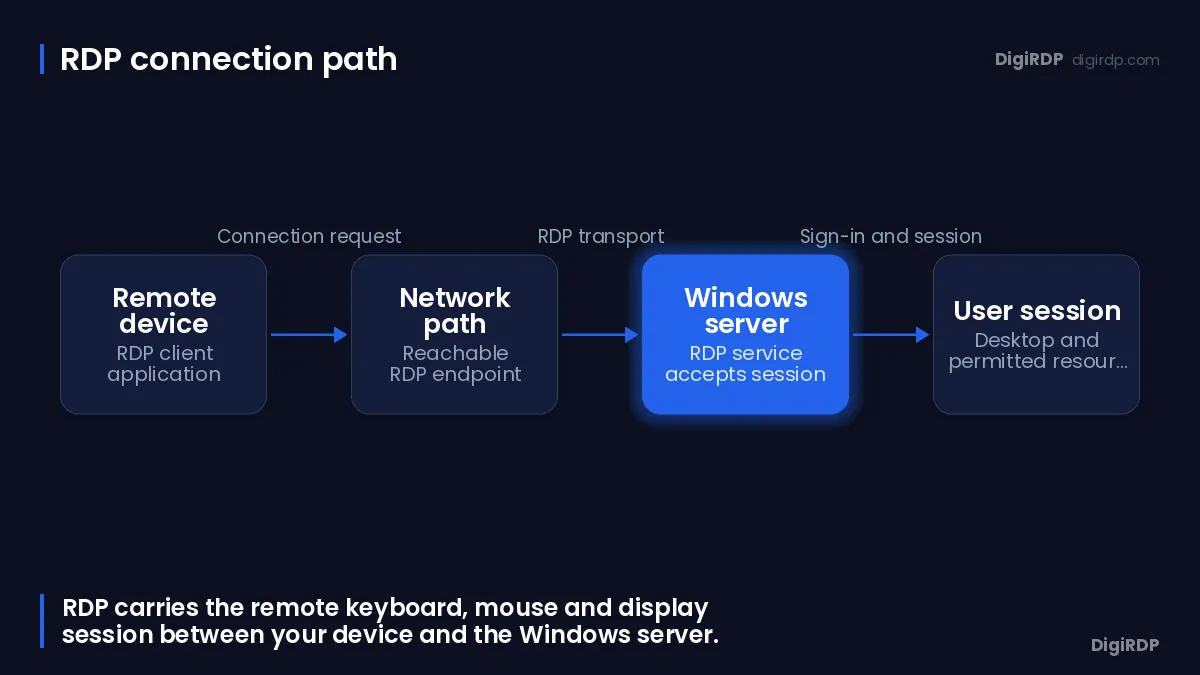
An RDP connection starts on your device, reaches a Windows host across a network and creates a session only after authentication and authorisation succeed. Applications run on the host while you interact with their rendered desktop remotely.
The RDP client and target address
You enter a computer name or IP address in an RDP client, then the client attempts to contact the target host. The target must be powered on, connected to the network, configured to allow Remote Desktop, reachable over the network and permitted through the firewall.
Remote Desktop normally listens on TCP port 3389 unless the listening port is changed in the Windows configuration. Knowing an address alone does not confirm that the host is reachable or accepting RDP connections.
Display output, keyboard and mouse input
An RDP connection involves the client device sending keyboard and mouse input to the remote computer while receiving rendered display output from the server. Your local device is the control point; the remote Windows host performs the desktop work.
RDP server and Windows host editions
Windows Professional, Enterprise, Education and Windows Server editions can act as hosts for incoming Remote Desktop connections, while Windows Home editions cannot act as Remote Desktop hosts. Windows Home can still be used as an RDP client.
Network Reachability, Sign-In Rights and Admin Rights
Reachability, remote sign-in rights and administrator privileges are separate checks. Passing one does not imply that the other two are available.
Reachability and firewall access
A host can be reachable at the network level but still reject an RDP sign-in. Confirm that Remote Desktop is enabled, the relevant firewall path is allowed and the supplied address is the intended Windows host before troubleshooting credentials.
Remote Desktop Users and sign-in policies
The Windows user account must be in the permitted-user list or an authorised group before it can connect through Remote Desktop. The Allow log on through Remote Desktop Services policy determines which users or groups can access the sign-in screen through an RDP connection.
Membership in the Remote Desktop Users group or the Administrators group can provide the group-based access needed for RDP logon, subject to local and Group Policy restrictions. A deny policy can explicitly block a user or group from logging on through RDP, even where another setting appears to allow it.
Administrator permissions after sign-in
Administrator privilege controls elevated actions after you have signed in; it is not another name for RDP access. Give each person a separate account and grant only the remote sign-in and Windows permissions required for their work.
Choose and Receive Hosted Windows RDP Access
Match vCPU, RAM, storage, location and access requirements to the intended Windows workload before choosing a hosted option. Decide whether you need an interactive Windows desktop, an administrator-level account, a particular region or broader server configuration control.
The table below compares common requirements with available DigiRDP RDP plan options.
| Requirement | Plan | vCPU | RAM | Storage | Location | Setup time | Price (USD, live) |
|---|---|---|---|---|---|---|---|
| Entry | USA ADMIN RDP #1 | 1 vCPU | 1 GB | 25Gb SSD/NVMe | New York/Dallas | Instant Setup or Up to 12hrs | $6.39/mo, billed annually ($76.70) |
| Standard | Indian Admin RDP #2 | 2 vCPU | 2 GB | 40Gb SSD/NVMe | Pune MH, Mumbai MH | Instant Setup or Up to 12hrs | $7.99/mo, billed annually ($95.90) |
| Performance | Admin RDP PRO 1 | 3 vCPU | 4 GB | 80 GB NVMe | UK/NL+12 | Instant Setup or Up to 12hrs | $14.39/mo, billed annually ($172.70) |
| High-memory | Admin RDP #5 | 6 vCPU (2.5–3.5 GHz) | 8 GB | 120 GB disk | UK/NL+12 | Instant Setup or Up to 12hrs | $27.19/mo, billed annually ($326.30) |
Setup timing varies by product family, so use the published timing shown below when planning first access.
| Product family | Typical published setup time | Slowest published setup time |
|---|---|---|
| Cloud VPS | Instant Setup or Up to 12hrs | Instant Setup or Up to 12hrs |
| Windows RDP | Instant Setup or Up to 12hrs | Setup Time - Instant or upto 5 hours (Max 24 Hrs) |
| Dedicated Server | Setup time 24hr to upto 3days | Setup time 24hr to upto 3days |
Match server resources to your workload
Start with the software you will run, the number of concurrent users, expected memory use and required disk space. A single light desktop task and a multi-application Windows workload should not be sized in the same way.
You can review the current Windows RDP options on rdp plan. If you need broader server configuration choices rather than a hosted Windows desktop, compare the available VPS options on cloud vps plan.
Check location and setup information
Choose a location that suits the people or systems connecting to the host, then check the listed operating system, access type and setup information on the relevant plan page. Do not assume that a server location by itself grants RDP access; the operating system and account configuration still determine the connection method.
Initial access details and account configuration
Initial connection details normally need a host address, a Windows username and credentials. After first sign-in, verify the account type, create separate user accounts where needed and avoid sharing one administrator credential among several people.
Secure and Monitor Remote Desktop Access
Secure RDP by authenticating users before sessions are created, limiting who can reach the host and reviewing active sessions. These controls reduce the chance that a reachable service becomes an unnecessarily broad entry point.
Use Network Level Authentication and unique accounts
Network Level Authentication requires the user to authenticate before the remote session is established and is recommended by Microsoft for most environments. Use a separate Windows account for each person so sign-ins and permissions remain attributable to an individual account.
Limit exposure and review firewall rules
Microsoft warns that exposing Remote Desktop directly to the internet opens the computer to internet access and recommends using a VPN when possible. Restrict remote access paths and firewall rules to the users and networks that genuinely require them.
For connection and access checks, consult the relevant DigiRDP knowledge-base guidance at knowledgebase.
Check active and disconnected sessions
The Windows query user command displays users logged on to a Remote Desktop Session Host, including user name, session name, session ID, active or disconnected state, idle time and logon time. Running it without a specified user returns the users logged on to the current Remote Desktop Session Host server.
Review disconnected sessions as well as active ones, especially on shared administrative hosts. A disconnected session may still hold applications and files open on the remote machine.
Common Misconceptions and Related Terms
RDP is an interactive remote desktop technology, not a catch-all term for every form of remote access. Separating related terms helps you request the correct access and diagnose the correct layer when a connection fails.
RDP is not the same as remote file access
Remote file access lets you reach files through a file-sharing or synchronisation method. RDP instead gives an authorised account a Windows desktop session, from which that account may use files and applications allowed by the host’s permissions.
Similarly, remote access control describes the rules that decide who can connect and what they can do. It may include account permissions, group membership, firewall rules and sign-in policies; it is not itself an RDP client.
Browser-based Remote Desktop requirements
A browser-based Remote Desktop web client lets users access administrator-published remote desktops and applications through a compatible browser. It is not a universal replacement for entering an address in a standard RDP client.
A browser-based Remote Desktop web client deployment requires an RD Gateway, RD Connection Broker and RD Web Access on supported Windows Server infrastructure. The web client cannot connect to a Remote Desktop deployment without an RD Gateway.
Short glossary of RDP access terms
The table below defines related terms you may encounter when requesting or managing remote desktop access.
| Term | Meaning |
|---|---|
| Host | The remote Windows computer or server that accepts a connection. |
| Client | The application or supported browser interface used to initiate a connection. |
| Session | The Windows desktop environment created after a successful sign-in. |
| Credentials | The account details used to authenticate a user. |
| Remote Desktop Users | A Windows group that can provide group-based RDP logon access, subject to policy. |
| Network Level Authentication | Authentication performed before a remote session is established. |
| RD Gateway | A required component for the documented Remote Desktop web client deployment. |
Frequently Asked Questions
What is Remote Desktop used for?
Remote Desktop is used to access a Windows computer or server from another device. An approved remote user can use the target computer’s applications, files and network resources as if using it locally.
What is RDP access to a server?
RDP access to a server means an account can create an interactive Windows session on that server through Remote Desktop Protocol. It requires a reachable host, an enabled Remote Desktop configuration, valid credentials and permission for the account to sign in remotely.
How do you give RDP access to a user?
Enable Remote Desktop on the eligible Windows host, then add the account to the permitted-user list or an authorised group and confirm that firewall and sign-in policies allow the connection. Membership in Remote Desktop Users or Administrators can provide group-based access, subject to local and Group Policy restrictions.
How can you tell whether someone is using Remote Desktop on a computer?
On a Remote Desktop Session Host, query user shows logged-on users and reports active or disconnected state, idle time and logon time. You need appropriate access to run administrative checks on the host.
Can you open RDP in a browser?
You can use the Remote Desktop web client through a compatible browser when an administrator has published remote desktops or applications and deployed the required infrastructure. Microsoft documents an RD Gateway, RD Connection Broker and RD Web Access as requirements for that web-client deployment.
Can you use RDP from Linux?
Microsoft documents Remote Desktop client availability across several platforms and browser-based access, with features varying by platform. For browser-based Remote Desktop web client access, Microsoft lists Linux PCs among the supported computer platforms.
Sources
- Remote Desktop Protocol - Win32 apps | Microsoft Learn — learn.microsoft.com
- Enable Remote Desktop on your PC | Microsoft Learn — learn.microsoft.com
- UserRights Policy CSP | Microsoft Learn — learn.microsoft.com
- The System Administrator Has Restricted the Types of Logon - Windows Server | Microsoft Learn — learn.microsoft.com
- Deny user or group logon via RDP - Windows Server | Microsoft Learn — learn.microsoft.com
- Change Remote Desktop listening port on Windows and Windows Server | Microsoft Learn — learn.microsoft.com
- Remote Desktop - Allow Access to Your PC from Outside Your Network | Microsoft Learn — learn.microsoft.com
- query user | Microsoft Learn — learn.microsoft.com
Ready to deploy your own server?
Full admin access, DDoS protection and instant setup — pick a plan sized to your workload.
Explore Windows RDP plans