



On this page
An Expert Advisor is an automated program that runs inside a trading terminal. You need a VPS when you want that terminal to remain available independently of your local computer, power state and internet connection. A VPS does not change an EA’s logic or establish trading outcomes, but it can provide a separate Windows environment for the terminal, reconnect checks and restart recovery.
This guide explains when a VPS is optional, what to verify before deployment, how to assess resources and location, and how to monitor an EA after setup.
What an Expert Advisor VPS Does
EA, trading terminal and VPS roles
An Expert Advisor is the automation component. The trading terminal is the Windows application that loads the EA, maintains its connection and records activity. A VPS is the separate Windows environment on which you can run that terminal and reach it remotely.
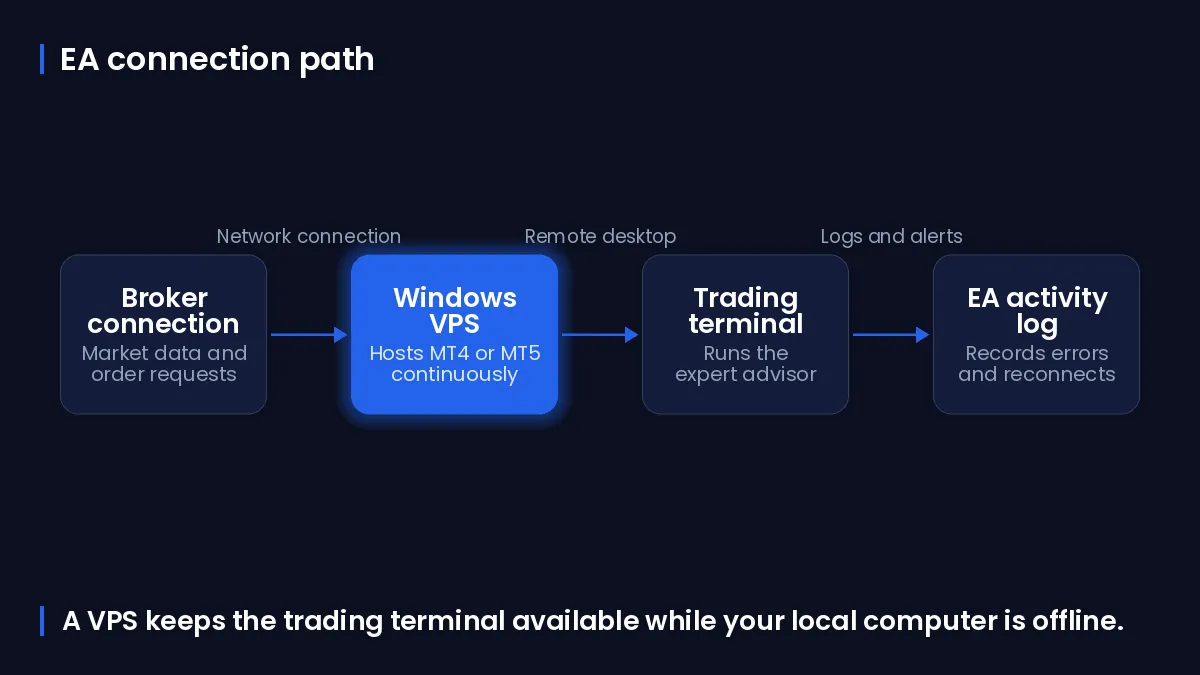
Keeping these roles separate helps with diagnosis. If the terminal is closed, the EA cannot operate; if the terminal is connected but its logs report an error, the issue may be configuration or EA logic rather than remote access.
A remote Windows desktop can keep its applications available independently of whether your local computer is powered on, provided that the remote system remains running and the application is configured to start and reconnect correctly. You can review DigiRDP’s Forex VPS hosting options on Forex VPS options.
What stays running when your local computer is off
After you disconnect from Remote Desktop, the remote Windows session and its applications can continue on the VPS. Turning off your own computer therefore ends your access device, not necessarily the terminal running on the remote Windows environment.
That distinction depends on configuration. Test a normal Remote Desktop disconnect, then reconnect and confirm that the terminal, charts, connection status and EA state are still as expected.
When a VPS Is Optional and When It Matters
Situations where a local computer may be enough
A local computer may be enough when you only need the terminal during supervised periods and can keep the computer powered, awake and connected for that time. Check its sleep settings, internet stability and whether the terminal recovers as intended after a restart before relying on it.
Windows 11 exposes screen, sleep and hibernate timeouts under Settings > System > Power & battery, so you can review whether a local computer may sleep and interrupt an application.
Reliability risks a separate Windows environment can reduce
A separate Windows environment removes dependency on your local laptop or desktop being switched on and connected. It also gives you one consistent remote environment in which to test terminal startup, reconnection and post-restart checks.
It does not remove the need to inspect the terminal after interruptions. Windows Update can restart a device outside configured active hours, so an always-on workload needs a restart plan and a post-reboot application check.
What a VPS cannot verify or improve
A VPS cannot determine whether an EA’s rules, parameters, permissions or external dependencies are correct. It also cannot turn a disconnected terminal into a connected one, repair invalid credentials, or make an EA suitable for a particular use.
Treat availability and EA behaviour as separate checks: first confirm that Windows and the terminal are running; then read the terminal logs for the EA’s own status.
Reliability Checklist Before You Run an EA
Local computer, sleep and internet checks
Use this checklist before moving an EA between a local computer and a VPS:
- Record the terminal name, account connection status and the charts on which the EA is attached.
- Confirm that the terminal remains running after you disconnect from Remote Desktop.
- For a local host, review sleep and hibernate timeouts and test the internet connection under normal operating conditions.
- Keep a secure record of the Remote Desktop address, username and password without placing credentials in terminal notes or screenshots.
- Reconnect to the remote desktop and verify the terminal’s connection indicator, EA state and recent log entries.
Windows restart and application recovery plan
Plan for a restart before you need one. Windows provides active-hours policies and scheduled installation settings for update-related restarts, but you should still test application recovery after a reboot.
- Restart the Windows environment during a supervised period.
- Sign in after the restart and verify that the terminal has started.
- Check that the terminal has reconnected using the intended credentials.
- Review the Experts and Journal logs before treating the recovery test as complete.
- Document the exact recovery steps if a terminal requires manual action.
Remote Desktop account security
Use a strong, unique password for every account with remote access, and restrict access to trusted networks or appropriate remote-access controls. Do not share Remote Desktop credentials through unprotected chat, email or screenshots.
Security is also an availability issue: if you lose access to the Windows environment, you cannot perform the checks needed to distinguish an access problem from a terminal problem.
Windows Resources and Location for MT4 or MT5
Measure one terminal before adding more
There is no universal CPU, RAM or storage amount for every EA workload. Resource needs vary with the number of terminals, open charts, symbols, indicators, history use and the EA’s own activity.
Start one terminal under the workload you actually intend to run. In Windows Task Manager, observe CPU, memory and disk activity over a normal period and again during busy periods. Add terminals or EAs only after retesting the combined workload.
Remote Desktop Services planning treats CPU, memory and other server resources as deployment considerations rather than a universal amount for every application. For platform options, see MT4 Windows VPS for an MT4 terminal and MT5 VPS Hosting — Pre-Installed MetaTrader 5 with Multi-EA Support for an MT5 terminal.
Verify latency to the trade server
Location can affect the network path between the Windows environment and the trade server. Measure the terminal’s displayed connection status and latency where available, then compare locations using the same terminal configuration and a comparable test period.
Do not infer latency from a city name alone. Your own network path, the destination server and the time of measurement all affect the result.
Why a phone is an access device, not the EA host
You can access a Windows Remote Desktop environment from Windows, macOS, iOS, iPadOS, Android and a supported web browser using the applicable Microsoft client. When you connect from a phone, the phone is a Remote Desktop client; it is not running the Windows desktop application locally.
This is useful for checking status or reconnecting while away from your desk, but perform detailed log review and configuration changes in the remote Windows environment.
Match Your EA Workload to a DigiRDP Plan
Start with observed resource use
Match measured terminal workload and operating requirements to the available DigiRDP Forex and New York Windows RDP plans.
| Requirement | Plan | vCPU | RAM | Storage | Location | Setup time | Price (USD, live) |
|---|---|---|---|---|---|---|---|
| 1 platform, 1–2 charts, 1–2 EAs | Forex ADMIN RDP #1 | 2 vCPU (2.5–3.5 GHz) | 2 GB | 40 GB NVMe | UK/NL+12 | Instant Setup or Up to 12hrs | $12.50/mo, billed annually ($150.00) |
| 2–3 platforms or 5+ charts, several EAs | Forex ADMIN RDP #2 | 4 vCPU (2.5–3.5 GHz) | 4 GB | 80 GB NVMe | UK/NL+12 | Instant Setup or Up to 12hrs | $23.33/mo, billed annually ($280.00) |
| Many EAs, tick backtests, multiple brokers | Forex ADMIN RDP #3 | 2 vCPU (2.5–3.5 GHz) | 6 GB | 80 GB NVMe | UK/NL+12 | Instant Setup or Up to 12hrs | $83.25/mo, billed annually ($999.00) |
| Prop-firm scale: many terminals and indicators | New York Ryzen RDP #8 | 6 vCPU | 16 GB DDR4 | 200 GB NVMe | USA-New York | Instant Setup or Up to 12hrs | See plan page |
Verify current plan details and location availability on the relevant plan page before ordering. You can inspect the current Forex VPS range on Forex VPS plans.
Choose from observed CPU and memory use rather than a generic “best VPS for Expert Advisor” label. Leave capacity for Windows, the terminal and normal variation, then retest after adding charts, symbols or another terminal.
Confirm the operating location before deployment
Confirm the operating location before deployment, then measure the terminal connection from that environment. DigiRDP lists locations including New York City, Los Angeles, Dallas, Singapore, London, Germany and several locations in India; review location options on data centre locations.
A plan should be selected for the measured workload and the tested route to the trade server, not for an assumed latency result.
Monitor and Troubleshoot an EA on a VPS
Terminal and connection checks
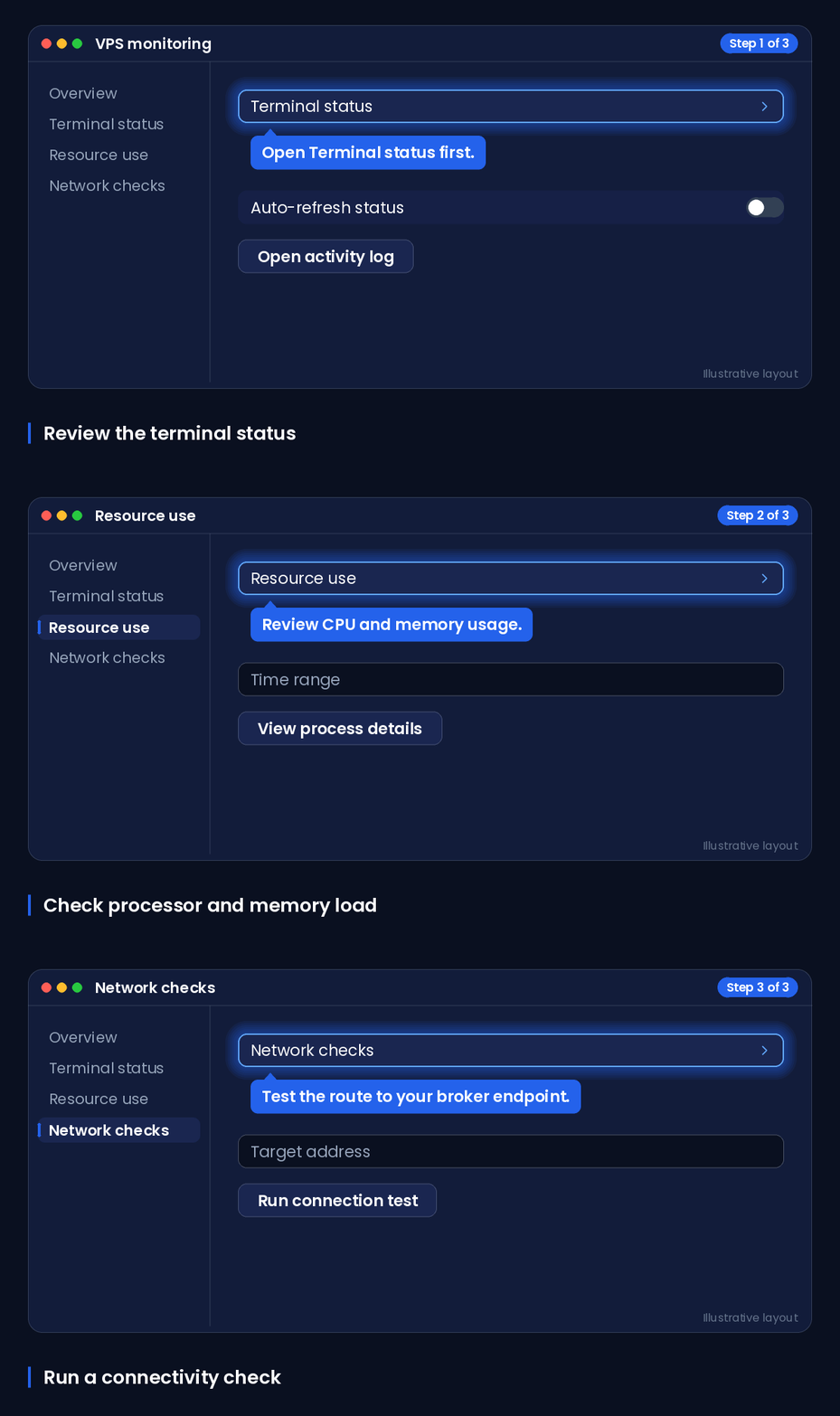
Diagnose a stopped EA by checking the remote Windows session, terminal connection state, logs, resource use and recovery after restart. Start with remote access and the terminal connection before assuming the EA itself has stopped.
The table below separates common symptoms, infrastructure or terminal checks, and the next action to verify.
| Symptom | Check | Next verification action |
|---|---|---|
| You cannot reach the Windows desktop | Confirm the Remote Desktop address, network access and credentials. | Restore Remote Desktop access first; this is an access issue, not evidence about EA logic. |
| Windows desktop opens but the terminal is closed | Check whether Windows restarted or the application was closed. | Start the terminal, then test and document the intended post-restart recovery process. |
| Terminal is open but disconnected | Inspect the terminal connection indicator and account connection details. | Wait for or restore the terminal connection, then confirm the log records a successful connection. |
| Terminal is connected but the EA appears inactive | Review the Experts and Journal logs, the attached chart and EA settings. | Investigate EA configuration or logic separately from VPS access and Windows availability. |
| Terminal becomes slow or unresponsive | Review Task Manager for sustained CPU, memory or disk pressure. | Reduce workload or retest with appropriate capacity, then check the logs after recovery. |
| Problem follows a restart | Confirm Windows sign-in, terminal startup, connection and EA state. | Repeat a supervised restart test and record any manual recovery step. |
Experts and Journal log review
Review the terminal’s Experts and Journal logs in time order around the interruption. Record the time of the last normal activity, the connection state, restart time if applicable, and the first message after recovery.
Logs can help separate an infrastructure interruption from a terminal setting or EA condition. They do not replace testing the EA configuration in a controlled environment.
Resource pressure and restart checks
Use Task Manager to observe CPU, memory and disk activity while the workload is running. Windows offers power modes including a performance-oriented choice, so confirm that the selected operating mode is appropriate before attributing slow behaviour to the VPS.
After a connection loss or restart, reconnect, confirm the terminal is running and connected, inspect both logs, and repeat the check after any change. For Windows RDP access or connection guidance, use DigiRDP support.
Related Terms for EA Hosting
The following terms separate remote access, terminal availability and connectivity.
| Term | Meaning |
|---|---|
| Expert Advisor | An automated program that runs inside a trading terminal. |
| VPS | A virtual private server: a separate computing environment that you access remotely. |
| Remote Desktop | A method of viewing and controlling the remote Windows environment from another device. |
| Latency | The delay in network communication between systems; measure it from the actual terminal environment. |
| Restart recovery | The tested process by which Windows and the terminal return to the required running state after a reboot. |
| Resource contention | Competition for CPU, memory or disk resources that can make applications slow or unresponsive. |
Frequently Asked Questions
Do I need a VPS to run an Expert Advisor?
No. An EA can run on a local computer while its trading terminal is open, connected and able to remain running. A VPS matters when you want a separate Windows environment that does not depend on your local computer being powered on and connected.
Can an EA run while my computer is turned off?
It can continue on a remote Windows VPS if the VPS remains running and the terminal is configured to start and reconnect correctly. Your computer is then the device used to access the remote desktop, rather than the system hosting the terminal.
What VPS resources does an MT4 or MT5 Expert Advisor need?
There is no universal requirement. Measure CPU, memory and disk activity for one terminal under your intended charts, symbols and EA workload, then retest after adding terminals or EAs.
Does VPS location affect EA latency?
Location can affect the network path between the Windows environment and the trade server. Measure the terminal connection from the proposed location rather than assuming a result from the location name alone.
Can I run multiple Expert Advisors on one VPS?
You can assess multiple EAs on one VPS by measuring the combined use of terminals, charts and EAs. Add workload gradually and watch CPU, memory and disk activity, then check terminal logs after each change.
What should I check if my EA stops trading on a VPS?
First check that you can access Windows, the terminal is open and its connection status is normal. Then review the Experts and Journal logs, the EA attachment and settings, resource use, and whether a restart occurred.
A connected terminal with an inactive EA points to a different investigation from a Remote Desktop or Windows availability problem.
Risk disclaimer: Trading forex, CFDs and other leveraged products carries a high level of risk and is not suitable for every investor; you can lose more than your initial deposit. This article is about server infrastructure only. It is not investment, trading or financial advice, and a VPS does not improve trading results or guarantee any outcome. Consider your objectives and experience and seek independent advice where appropriate.
Sources
- Remote Desktop Services overview in Windows Server | Microsoft Learn — learn.microsoft.com
- Power settings in Windows 11 | Microsoft Support — support.microsoft.com
- Manage device restarts after updates | Microsoft Learn — learn.microsoft.com
- Enable Remote Desktop on your PC | Microsoft Learn — learn.microsoft.com
- Connect to Remote Desktop Services in Windows Server | Microsoft Learn — learn.microsoft.com
- Change the power mode for your Windows PC - Microsoft Support — support.microsoft.com
Ready to deploy your own server?
Full admin access, DDoS protection and instant setup — pick a plan sized to your workload.
Explore Cloud VPS plans