



On this page
A NinjaTrader mobile VPS is a remote Windows machine that can run NinjaTrader 8 while you view and control that desktop through Remote Desktop from a phone, tablet or computer. It does not turn the Windows platform into a native mobile app, replace the broker or data-feed connection, or ensure that a strategy remains connected under every condition.
This guide separates mobile monitoring from remote desktop access, explains the connection workflow across devices, and sets out the checks to make before you rely on a persistent Windows session.
What a NinjaTrader Mobile VPS Is
A VPS is a virtual machine: a remotely hosted computer with its own operating system and desktop environment. In this workflow, NinjaTrader 8 runs inside the Windows session, while your local phone, tablet or computer displays and controls that session.
VPS, RDP and the remote Windows session
RDP is the Remote Desktop Protocol used to display and interact with a remote Windows desktop. Microsoft states that Remote Desktop can connect to a Windows PC from Windows, Android, iOS and other operating systems, allowing you to access the remote computer’s applications, files and desktop.
The application runs on the remote Windows machine rather than on the small device in your hand. Your local device needs a working network connection to view or control the session, but it is not doing the platform’s desktop processing itself.
Why a phone displays the desktop rather than replacing it
A phone connected through RDP shows a scaled remote Windows interface. It can be useful when you need to inspect a chart, platform status or a configuration window away from your main computer, but it remains a desktop workspace viewed on a smaller screen.
Microsoft Remote Desktop clients provide touch and mouse-pointer modes, which can help you operate a Windows desktop from a phone or tablet. These controls help with navigation; they do not redesign desktop controls for a mobile display.
Native Mobile App Versus NinjaTrader Desktop Remote Access
Native mobile monitoring and an RDP connection solve different access problems. Neither approach controls the availability of a broker connection or data feed.
The table below compares mobile monitoring with access to a full Windows desktop through RDP.
| Area | Native mobile monitoring | RDP connection to a Windows desktop |
|---|---|---|
| Interface | Mobile-oriented interface | Remote view of the Windows desktop |
| Desktop workspace | Does not provide the full hosted Windows workspace | Provides access to the hosted Windows workspace |
| Screen constraints | Designed for a small touch display | Desktop controls may be difficult to use on a phone |
| Connection dependency | Requires the mobile device to reach its service | Requires the client device to reach the remote Windows session |
| Appropriate use | Quick mobile monitoring | Viewing and operating the established desktop workspace |
What native mobile access is for
Use a mobile-oriented interface when the task is quick monitoring on a touch screen. Treat it as a separate access method, not as evidence that your desktop charts, layouts, add-ons or automation are available in the same form.
What remote desktop access provides
Remote desktop access gives you the Windows environment where you installed and configured the desktop platform. Microsoft documents that Remote Desktop Services can deliver a full desktop hosted on a physical server or virtual machine, with endpoints displaying the remote interface through RDP.
Small-screen limitations to expect
On a phone, dense charts, small window controls and multi-window layouts can require zooming, panning and pointer mode. Use a tablet or computer when you need to make configuration changes carefully, and reserve the phone for tasks you can complete reliably on its screen.
How the VPS Workflow Works Across Devices
The connection path is simple: your device runs an RDP client, the client connects to the remote Windows machine, and the Windows session runs the desktop platform. Save the remote PC name and sign-in details supplied for the Windows service rather than guessing connection details.
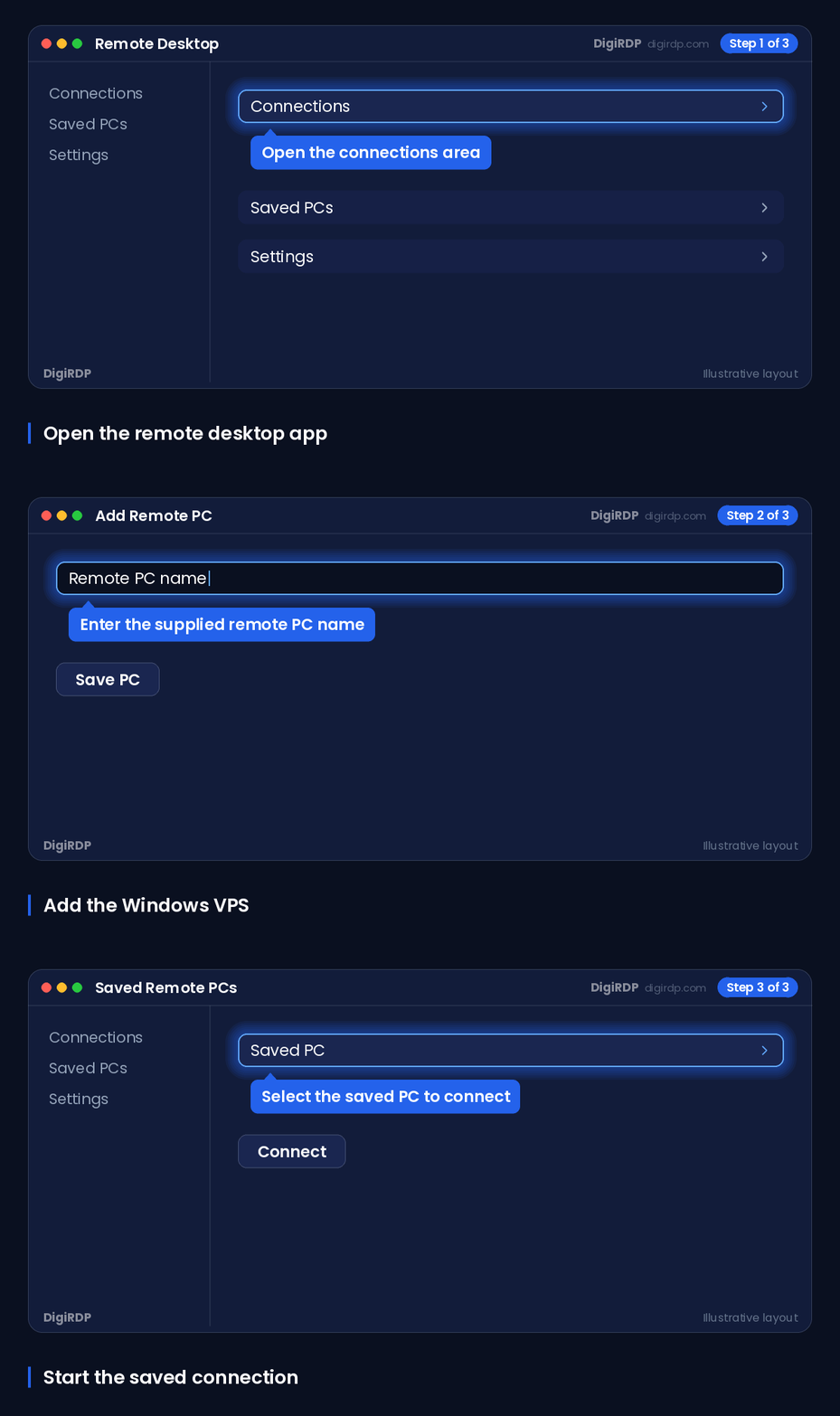
Connect from Android
Microsoft instructs Android users to open the Remote Desktop app, add the remote PC name and select the PC to connect. Follow this sequence after you have received the connection details for your Windows session.
Open the Remote Desktop app
Select Add
Enter the remote PC name supplied for your Windows session
Select the saved PC to connect
After the desktop appears, confirm that the expected Windows session and platform workspace are visible before making changes.
Connect from iPhone or iPad
Microsoft instructs iOS users to open Windows App, add the remote PC name and select the PC to start the connection. Use the same remote PC name and credentials assigned to your session.
Open Windows App
Add the remote PC name supplied for your Windows session
Save the PC entry
Select the saved PC to start the connection
Use touch or mouse-pointer mode according to the control you need to operate. Check that taps and pointer actions affect the intended remote window before changing platform settings.
Reconnect from another Windows computer
From another Windows computer, use its Remote Desktop client and the remote PC name supplied for the session. A reconnect should return you to the remote Windows environment, not create a substitute local installation.
Open the Windows Remote Desktop client
Enter the remote PC name supplied for your Windows session
Choose Connect
Sign in with the credentials supplied for the session
After sign-in, identify the existing session and verify the platform state rather than assuming a reconnect restored every external connection.
Use this short check after any device change.
Confirm the correct remote Windows desktop is open
Confirm the intended platform workspace is visible
Check the platform connection status
Review any automation status before leaving the session
What Continues When Your Phone or Computer Disconnects
Closing or losing the RDP client is not necessarily the same as signing out of Windows. Microsoft documents Active, Idle, Locked and Disconnected as distinct Remote Desktop Services session states, so a disconnected RDP connection does not necessarily mean that the remote session has ended.
Disconnected is not necessarily signed out
A Remote Desktop session can remain active after the client disconnects, allowing applications on the remote PC to continue running while the session remains active. This distinction matters when your local device battery, home connection or app session ends while the remote Windows machine remains available.
Do not equate a black phone screen or a closed RDP client with a confirmed platform shutdown. Reconnect and check the session state and application state directly.
Dependencies a VPS cannot control
A VPS does not control broker authentication, data-feed availability, platform errors, account permissions, operating-system updates, electricity or network events outside the hosted Windows session. It also cannot guarantee that an automation workflow will continue under every condition.
For infrastructure information relevant to persistent platform sessions, review Expert Advisor VPS: Reliability and Connectivity Checklist.
Checks before relying on unattended automation
Before leaving a session unattended, confirm the Windows session remains active after a deliberate RDP disconnect, then reconnect and inspect the platform, connection indicators and automation state. Test only in simulation first, including a planned reconnect from a second device.
- Confirm that the correct workspace loads after reconnecting.
- Confirm the intended broker and data-feed connections are shown by the platform.
- Confirm that any automation is enabled only when you expect it to be enabled.
- Record how you will check the session after a network interruption or Windows restart.
Choosing Windows Resources and a VPS Location
Choose resources for the actual desktop workload, not simply for the fact that you will view it from a mobile device. More charts, indicators, add-ons and simultaneous desktop programs can require more CPU capacity, RAM and storage than a basic monitoring workspace.
Match resources to charts, add-ons and automation
Start with the number of charts and windows you will keep open, then include any add-ons and other programs that share the Windows session. Observe CPU and memory use during your normal session before deciding whether the workspace needs more headroom.
Check the current Windows VPS options on Cloud VPS plans and compare RDP-oriented options on RDP plans before ordering.
Measure latency from your normal connection
Latency is the time taken for a network exchange between two points. For remote desktop usability, measure the response from the places and devices you normally use, including your primary connection and mobile connection, rather than assuming the nearest location is automatically best.
Review available server locations when considering available server locations. If you are connecting from India, compare your measured RDP responsiveness with the location that best suits your own access pattern and any external services your workflow uses.
Test the workspace in simulation first
Build the workspace, reconnect from each intended device, and test screen controls before you depend on it. A relevant setup guide is available at DigiRDP for Forex Traders — Every Second Counts.
Testing should include opening the desktop platform, checking the display at your expected screen size, disconnecting the client deliberately and confirming what remains active after you reconnect.
DigiRDP Options for NinjaTrader Remote Access
Plan selection should start with the Windows desktop workload and the location you want to test, then move to the current plan specifications. Avoid selecting a plan solely because you intend to connect from a phone.
Plan matching for a Windows desktop workflow
The table below matches remote-access requirements to available DigiRDP options; verify current specifications on the plan page before ordering.
| Requirement | Plan | vCPU | RAM | Storage | Location | Setup time | Price (USD, live) |
|---|---|---|---|---|---|---|---|
| 1 platform, 1–2 charts, 1–2 EAs | Forex ADMIN RDP #1 | 2 vCPU (2.5–3.5 GHz) | 2 GB | 40 GB NVMe | UK/NL+12 | Instant Setup or Up to 12hrs | $12.50/mo, billed annually ($150.00) |
| 2–3 platforms or 5+ charts, several EAs | Forex ADMIN RDP #2 | 4 vCPU (2.5–3.5 GHz) | 4 GB | 80 GB NVMe | UK/NL+12 | Instant Setup or Up to 12hrs | $23.33/mo, billed annually ($280.00) |
| Many EAs, tick backtests, multiple brokers | New York Ryzen RDP #6 | 6 vCPU | 8 GB DDR4 | 120 GB NVMe | USA-New York | Instant Setup or Up to 12hrs | $27.19/mo, billed annually ($326.30) |
| Prop-firm scale: many terminals and indicators | New York Ryzen RDP #8 | 6 vCPU | 16 GB DDR4 | 200 GB NVMe | USA-New York | Instant Setup or Up to 12hrs | $47.99/mo, billed annually ($575.90) |
Use the listed plan route to inspect the current specification, location and ordering details for the option that matches your workload.
Related Terms for Mobile VPS Access
VPS
A VPS is a virtual private server: a virtual machine used as a remote computer. In this workflow, it is the machine hosting the Windows desktop you connect to.
RDP
RDP is Remote Desktop Protocol, the connection method used to display and control a remote Windows session. It carries the desktop interface to your phone, tablet or computer.
Remote session
A remote session is the signed-in Windows environment running on the remote machine. It can have a different state from the RDP client on your local device.
Latency
Latency is the delay in network communication between your device and the remote system. Lower measured delay can make remote desktop interactions feel more responsive, but it does not establish the state of external platform services.
Data feed
A data feed is an external service that supplies market data to a platform. A Windows VPS hosts the desktop environment but does not control the availability or permissions of that external service.
Frequently Asked Questions
What does a VPS provide for NinjaTrader mobile access?
A VPS provides a remote Windows machine where the desktop platform can run. You connect to that Windows desktop through an RDP client from a phone, tablet or computer.
It provides remote desktop access, not a conversion of the desktop platform into a native mobile application.
Can the NinjaTrader desktop platform run on a VPS while I use the mobile app?
A VPS can host the remote Windows desktop while you use a separate mobile access method for monitoring. Treat those as separate interfaces and verify the state of the Windows platform directly through RDP when needed.
The VPS does not control the availability of the broker connection or data feed used by the platform.
What is the difference between the NinjaTrader mobile app and remote access to NinjaTrader Desktop?
A mobile app is intended for a mobile-oriented interface, while RDP displays the existing Windows desktop workspace on your device. RDP is the route to inspect and operate the hosted desktop itself.
On a phone, the remote desktop can be harder to operate because desktop charts and controls are scaled to a small display.
Does a VPS keep NinjaTrader strategies running when my computer is off?
Your local computer can be off while the remote Windows machine and its active session remain available. Microsoft states that applications on the remote PC can remain active after a Remote Desktop client disconnects while the session remains active.
This does not guarantee continuity: platform state, broker and data-feed connections, Windows events and other external dependencies still need monitoring.
Can I connect to a NinjaTrader VPS from Android, iPhone or iPad?
Microsoft documents Remote Desktop access from Android and iOS devices to a Windows PC. Use the remote PC name and credentials supplied for your Windows session, then confirm that the intended desktop is open.
A tablet generally gives more room for desktop controls than a phone, but test the actual workspace on each device you intend to use.
What should I test before using NinjaTrader automation on a VPS?
Test the workspace in simulation first. Check normal platform operation, the relevant connection status, a deliberate RDP disconnect and reconnect, and the state shown by the platform afterwards.
Also test your access from each device and network you expect to use, including how you will inspect the session after an interruption.
Risk disclaimer: Trading forex, CFDs and other leveraged products carries a high level of risk and is not suitable for every investor; you can lose more than your initial deposit. This article is about server infrastructure only. It is not investment, trading or financial advice, and a VPS does not improve trading results or guarantee any outcome. Consider your objectives and experience and seek independent advice where appropriate.
Sources
- How to use Remote Desktop | Microsoft Support — support.microsoft.com
- Connect to Remote Desktop Services and remote PCs on Windows - Remote Desktop client | Microsoft Learn — learn.microsoft.com
- Remote Desktop Services overview in Windows Server | Microsoft Learn — learn.microsoft.com
- Troubleshoot Unexpected RDS Session Locks or Disconnections - Windows Server | Microsoft Learn — learn.microsoft.com
Ready to deploy your own server?
Full admin access, DDoS protection and instant setup — pick a plan sized to your workload.
Explore Cloud VPS plans